<?php

$dataid    = "1234"; //Ganti dengan consumerID dari BPJS
$secretKey = "1234"; //Ganti dengan consumerSecret dari BPJS
$localIP   = "192.168.0.1";
$url       = "http://".$localIP."/devWSLokalRest/SEP/sep"; //Lihat katalog, jangan sertakan port
$port      = 8081; //port url

date_default_timezone_set('UTC');
$tStamp              = strval(time() - strtotime('1970-01-01 00:00:00'));
$signature           = hash_hmac('sha256', $dataid . "&" . $tStamp, $secretKey, true);
$encodedSignature    = base64_encode($signature);
$urlencodedSignature = urlencode($encodedSignature);

echo "X-cons-id: " . $dataid . "<br>";
echo "X-timestamp:" . $tStamp . "<br>";
echo "X-signature: " . $encodedSignature . "<br>";

function post_request($url, $port, $dataid, $tStamp, $encodedSignature, $data, $referer = '')
{

    //-Convert the data array into URL Parameters like a=b&foo=bar etc.
    //$data = http_build_query($data);

    // parse the given URL
    $url = parse_url($url);

    if ($url['scheme'] != 'http') {
        die('Error: Only HTTP request are supported !');
    }

    // extract host and path:
    $host = $url['host'];
    $path = $url['path'];

    // open a socket connection on port 80 - timeout: 50 sec
    $fp = fsockopen($host, $port, $errno, $errstr, 50);

    if ($fp) {

        // send the request headers:
        fputs($fp, "POST $path HTTP/1.1\r\n");
        fputs($fp, "Host: $host\r\n");

        if ($referer != '')
            fputs($fp, "Referer: $referer\r\n");

        fputs($fp, "x-cons-id: " . $dataid . "\r\n");
        fputs($fp, "x-timestamp: " . $tStamp . "\r\n");
        fputs($fp, "x-signature: " . $encodedSignature . "\r\n");
        fputs($fp, "Content-Type: application/x-www-form-urlencoded\r\n");
        fputs($fp, "Content-length: " . strlen($data) . "\r\n");
        fputs($fp, "Connection: close\r\n\r\n");
        fputs($fp, $data);

        $result = '';
        while (!feof($fp)) {
            // receive the results of the request, 128 char
            $result .= fgets($fp, 128);
        }
    } else {
        return array(
            'status' => 'err',
            'error' => "$errstr ($errno)"
        );
    }

    // close the socket connection:
    fclose($fp);

    // split the result header from the content
    $result = explode("\r\n\r\n", $result, 2);

    $header  = isset($result[0]) ? $result[0] : '';
    $content = isset($result[1]) ? $result[1] : '';

    // return as structured array:
    return array(
        'status' => 'ok',
        'header' => $header,
        'content' => $content
    );

}


$databpjs = "<request>
<data>
<t_sep>
<noKartu>0001134632924</noKartu>
<tglSep>2016-08-4 11:05:03</tglSep>
<tglRujukan>2016-08-2 11:05:03</tglRujukan>
<noRujukan>12345</noRujukan>
<ppkRujukan>0142U037</ppkRujukan>
<ppkPelayanan>3302191</ppkPelayanan>
<jnsPelayanan>2</jnsPelayanan>
<catatan>dari WS</catatan>
<diagAwal>K04.1</diagAwal>
<poliTujuan>GIG</poliTujuan>
<klsRawat>3</klsRawat>
<lakaLantas>2</lakaLantas>
<user>bpjs</user>
<noMr>1234</noMr>
</t_sep>
</data>
</request>";

$data = array(
    'Data' => $databpjs
);


$result = post_request($url, $port, $dataid, $tStamp, $encodedSignature, $databpjs, $referer = '');
if ($result['status'] == 'ok') {

    // Print headers
    echo $result['header'];

    echo '<hr />';

    //mengubah "re d sponse" menjadi "response"
    $resultstr = str_replace("re d sponse", "response", trim(preg_replace('/\s\s+/', ' ', $result['content'])));

    // print the result of the whole request:
    echo "<pre>";
    echo $resultstr;
    echo "</pre>";

} else {
    echo 'A error occured: ' . $result['error'];
}

?>
Kategori: Programming
Unable login 16.04
Press Ctrl+Alt+F3 and login into the shell.
Now run ls -lah. If in the output the line
-rw------- 1 root root 53 Nov 29 10:19 .Xauthority
then you need to do chown username:username .Xauthority and try logging in.
Else, do ls -ld /tmp. Check for the first 10 letters in the left: they should read exactly so: drwxrwxrwt.
drwxrwxrwt 15 root root 4096 Nov 30 04:17 /tmp
Else, you need to do sudo chmod a+wt /tmp and check again.
If not both, I’d recommend you either
dpkg-reconfigure lightdm- or uninstall, reinstall it.
Now press Alt+-> until you reach the login screen again, and restart.
After installing lubuntu
Installing packages
Untuk desktop
$ sudo apt-get install lubuntu-restricted-extras libdvd-pkg gnome-screenshot gksu leafpad default-jre wine winetricks playonlinux samba ufw
Untuk webserver
$ sudo apt-get install apache2 php libapache2-mod-php mysql-server php-mysql phpmyadmin yaz filezilla
$ sudo leafpad /etc/apache2/apache2.conf add: Include /etc/phpmyadmin/apache.conf
$ sudo service apache2 restart
$ sudo chown group:username /var/www/html
$ leafpad /var/www/html/index.php edit:
<?php
$servername = "localhost";
$username = "root";
$password = "123456";

// Create connection
$conn = new mysqli($servername, $username, $password);

// Check connection
if ($conn->connect_error) {
    die("Connection failed: " . $conn->connect_error);
}
echo "Connected successfully";
phpinfo();

?>
Test in browser: http://localhost/index.php
Untuk programming
$sudo apt-get install codeblock androidstudio monodevelop virtualbox
Enable Firewall
$ sudo ufw enable
$ sudo ufw status verbose
$ sudo ufw allow Samba
$ gksu leafpad /etc/default/ufw modify: IPT_MODULES=”nf_conntrack_ftp nf_nat_ftp nf_conntrack_irc nf_nat_irc nf_conntrack_netbios_ns”
$ sudo ufw reload
Enable SSH (windows: xming dan putty)
$ sudo apt-get install openssh-server
$ sudo ufw allow 22
Optimize SWAP
$ gksu leafpad /etc/sysctl.conf
add:
vm.swappiness=1
vm.vfs_cache_pressure=50
Cek OpenGL
$ glxinfo |grep direct
Install samba
Add myusername to the samba
$ sudo smbpasswd -a myusername
Export the drive I needed (no guest user)
$ gksu leafpad /etc/samba/smb.conf
to add the following export (no real option needed here)
[files]
path = /home/myusername/sharingfolder
writeable = yes
save and Restart samba
$ sudo service smbd restart
VNC Server
source: http://homecircuits.eu/blog/lubuntu-installing-vnc-server/
How to enable .NET Framework 3.5 on Windows 8 in Offline Mode
Problem Description
Windows 8 does not include .NET 3.5 (include .NET 2.0 and 3.0) by default. But if the user is upgrading from Windows 7 to Windows 8, .NET Framework 3.5 is fully enabled. The user can make sure this feature is enabled by check in Program and Features.
These is list of steps that the user can do to check it :
Step 1 :
Go to Settings. Choose Control Panel then choose Programs.
Step 2 :
Click Turn Windows features on or off, and the user will see window as image below.
The User can enable this feature by click on .NET Framework 3.5 (include .NET 2.0 and 3.0) select it and click OK. After this step, it will download the entire package from internet and install the .NET Framework 3.5 feature.
But if the user does not have an internet connection, this steps can not be applied.
The following are the steps to enable .NET Framework 3.5 (include .NET 2.0 and 3.0) feature in offline mode :
Step 1 :
Insert Windows 8 DVD or mount ISO image. The source of this feature can be found in folder E:\sources\sxs. (In this case E: the user’s drive letter on which the user has loaded Windows 8 Media.)
Step 2 :
Open CMD.EXE with Administrative Privileges.
Step 3 :
Run the following command:
Dism.exe /online /enable-feature /featurename:NetFX3 /All /Source:E:\sources\sxs /LimitAccess
After completing the installation of .NET Framework 3.5 you can see that the feature is enabled.
Source: https://support.microsoft.com/en-us/kb/2785188
Setting 32-bit x86 build target in Visual C# 2008 Express Edition
In VC# Express, this property is missing, but you can still create an x86 configuration if you know where to look.
It looks like a long list of steps, but once you know where these things are it’s a lot easier. Anyone who only has VC# Express will probably find this useful. Once you know about Configuration Manager, it’ll be much more intuitive the next time.
- In VC# Express 2005, go to Tools -> Options.
- In the bottom-left corner of the Options dialog, check the box that
says, “Show all settings”. - In the tree-view on the left hand side, select “Projects and Solutions”.
- In the options on the right, check the box that says, “Show advanced
build configuraions.” - Click OK.
- Go to Build -> Configuration Manager…
- In the Platform column next to your project, click the combobox and select
“”. - In the “New platform” setting, choose “x86”.
- Click OK.
- Click Close.
There, now you have an x86 configuration! Easy as pie! 🙂
I also recommend using Configuration Manager to delete the Any CPU platform. You really don’t want that if you ever have depedencies on 32-bit native DLLs (even indirect dependencies).
An Introduction To x64dbg
An Introduction To x64dbg
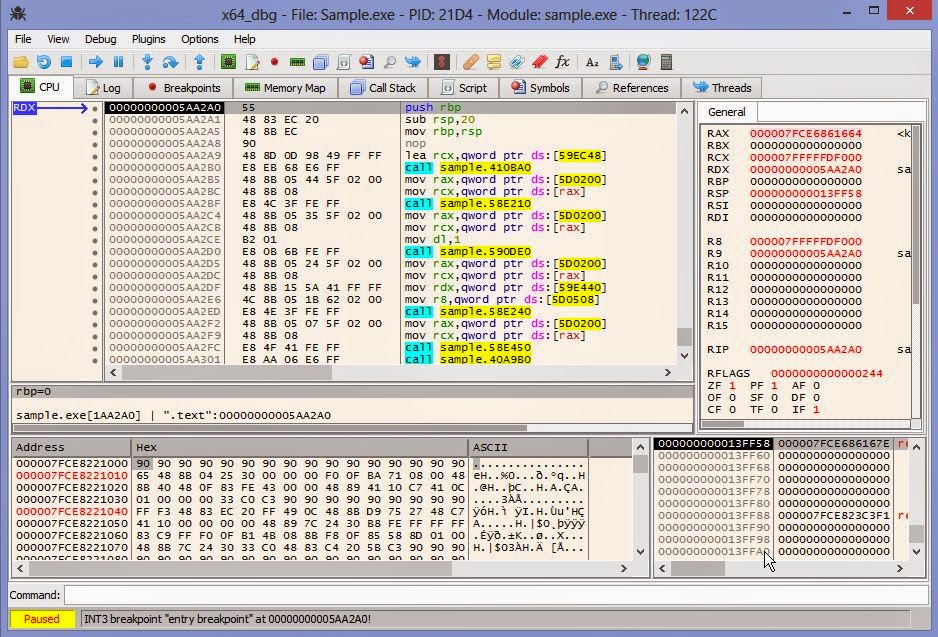
Welcome to this short, introductory tutorial for using x64dbg by Mr. Exodia. The goal of this tutorial is to teach you some of the fundamentals of the x64dbg and show you how closely its features and flexibility resembles its close cousin Ollydbg.While x64dbg is still in an alpha stage, its bugs are minor and few with only a crash happening under unlikely conditions.
1. The Configuration.
Configuring x64dbg is quite simple since the menu is much more concise than ollydbg, making the process much more user friendly. To access the configuration dialog, simply go to the Options menu and click Preferences. In the first tab labeled Events, you can configure what events you want x64_dbg to break on when they occur.

The configuration in the screenshot above is what I typically recommend and use for simple debugging. The options here are just like those found in ollydbg 1.10 with a few additional features. Here is the gist of what these features do.
System Breakpoint: When loading a new process, the will cause x64dbg to break in the system function which initializes the application you are attempting to debug.
TLS Callbacks: The TLS Callback is a function which is called before the main application runs. This can set parameters or even be used by certain protectors to implement anti-debug technology. This allows you to break on this function.
Entry Breakpoint: This causes x64dbg to break on the Entry point on the application. For general debugging, this is the only breakpoint you will need to have checked.
DLL Entry: This will break on the entry point of any DLL which is loaded by the process you are debugging.
Thread Entry: This will break on the first instruction of any new thread initialized by the current process.
Attach Breakpoint: When this is checked, it will cause x64dbg to break in the DbgUiRemoteBreakin function when attaching to an active process. If unchecked, it will attach without suspending the process.
DLL Load/DLL Unload: This will break in the system function when a new library(DLL) is loaded into or unloaded from the active process. The DLL Load breakpoint occurs before any of its code is executed.
Thread Start/Thread End: This allows us to break in system when our debugged application initializes or terminates a thread.

In the Engine pane, you will find a few advanced settings for the debugging engine. This should just be left as default in most cases, but here is a rundown of how they work.
Enable Debug Privilege: This allows you to attach to system processes.
Breakpoint Type: This feature allows you to try different types of breakpoints if your program detects or blocks the default INT3.
Undecorate Symbol Names: This makes symbol names look cleaner. It is an aesthetic feature.

In the Exceptions pane, you can tell x64_dbg which exceptions you would like to ignore and pass to the program. Leaving this blank will let x64_dbg break on every exception. If you want to ignore all exceptions, add the range 0-ffffffff using the Add Range button. The Add Last button will allow you to add the most recent exception which the program you are currently debugging incurred to the ignore list.

We can use the Disasm pane in order to change the appearance of the disassembled instructions. Here is a gist of what these options do.
Argument Spaces: This will put a space after every argument changing mov rax,rdx to mov rax, rdx. It essentially puts a space after every comma.
Memory Spaces: This puts a space in between memory reference instructions and their operators. This causes mov eax, byte ptr ds:[edx+18] to look like mov eax, byte ptr ds:[edx + 18].
Uppercase: This changes all of the text to uppercase.
Autocomments only on CIP: This will remove all comments, including references from the current disassembly except at the instruction pointer.

The Misc tab allows you to configure x64_dbg to be the Just in Time Debugger so that the system can attach it to a process whenever a problem occurs.
1. Debugging x64_dbg Sample:
In order to make this tutorial a little more hands on, I created a little program called x64_dbg Sample. It and its source are available for download directly from the x64_dbg sourceforge directory at the following link:
http://sourceforge.net/projects/x64dbg/files/extra/
Once you have downloaded this, extract it from the archive and let’s open it in x64_dbg. To do so, you can start x64_dbg and drag and drop the file into the disassembly window or use the File -> Open option to do the same. Alternately, you can let the default x64_dbg program automatically register a shell extension for you so you can open files through the right click menu.
Once you have opened it and you had previously configured the event settings to Entry Point only, you should be at the entry point of the main module. In the interface, you will see that x64_dbg has many of the same shortcut keys as ollydbg.

In the debug menu, you can see that x64_dbg has the same hotkeys as Ollydbg. These commands provide some of the key operations that you will need to use in your regular debugging activities.
Run(F9): This starts or resumes the process normally.
Run(skip exceptions) (Shift+f9): This will resume the process while passing the current and all following exceptions to the process.
Pause(F12): This suspends the current process.
Restart(Ctrl+F2): This terminates the debugged process and reloads it.
Close(Alt+F4): This terminates and unloads the debugged process.
Step Into(F7): This allows us to enter a routine or execute the next step in a repeat instruction.
Step Into(skip exceptions)(Shift+F7): This allows us to enter a routine or execute the next step in a repeat instruction while passing the current exception to the application.
Step Over(F8): This allows you to execute an entire subroutine or repeat instruction without stepping through it instruction by instruction.
Step Over(skip exceptions)(Shift+F8): This allows you to execute an entire subroutine or repeat instruction without stepping through it instruction by instruction while passing the current exception to the application.
Execute Till Return(Ctrl+F9): This resumes the process until a return instruction is executed.
Execute Till Return(skip exceptions)(Ctrl+Shift+F9): This resumes the process until a return instruction is executed while passing the current exception to the application.
Breakpoints:
When you are debugging, one of the primary features you want to use is called breakpoints. There are 3 main types of breakpoints. We will briefly discuss these here.
Execution Breakpoint: This is the most common and most used type of breakpoint. When you toggle a breakpoint on a specific address, this tell the
debugger to stop when that address is reached in the execution. To use this, simply press the F2 when over an address you would like to break on.
Memory Breakpoint: A memory breakpoint is used to pause an application when a specific area of memory is either accessed, written to, or executed. This is handy when you want to determine when or if a specific area of memory is used by the program. This is available in the right click menu of the memory map window and dump pane.
Hardware Breakpoint: A hardware breakpoint is used to pause an application when a particular address is either written to, read, or executed. This is specifically useful to determine when a particular variable is set. This can be used for byte, word, and dword reads and writes. This feature is available in the right click menu of the hex dump.
Let’s Begin:
Now that we have a general understanding of the features in x64_dbg, we can begin debugging our first target. We already have our target loaded into x64_dbg, so let’s Run it by pressing F9. As you can see, the application begins to run with the debugger attached to it. At this point, we can pause the application in x64_dbg and take a look at a few of its features. To pause the application, press F12.

When we pause, we arrive inside of a break-in thread created by x64_dbg. In order to get back to the main thread, we simply click the threads tab and double click on the one labeled main.

Once we arrive in the Main Thread, we can start stepping through the routines and analyzing the call stack. The Call Stack window gives you an extensive list of the functions and procedures(routines) which brought you to your current location. You can use this window to analyze these routines and learn about your application’s execution routine. Just double click the one you would like to follow in the disassembler.

The Memory Map pane will show us all of the sections or regions of RAM allocated to and by our application and its dependencies.

Let’s go ahead and resume the process by pressing F9. Let’s attempt to enter the fake password ‘123456’ into the application and see what message is returned when we click Check.

As we see, this is not a valid password because of the message ‘Authentication Failed. Invalid Password!‘ Now that we know the message, let’s use the built-in find referenced strings function in x64_dbg to see if we can locate this string inside of the application.To do this, we first need to verify that we are currently inside of the application module. Once this is verified, we can either click on the ‘A’ button on the top pane of x64_dbg, or left click in the disassembly pane and go to Search for -> String references.

This will build up a listing of all of the strings referenced in the application’s code. Once you build up a list, we can use the search pane to filter the list and find the location of this string. However, since this is small application, a simple scroll to the bottom will reveal the location of where our string is referenced, as well as some other interesting strings.

Double clicking any of these will take you to their location in the disassembly pane. You can also toggle a breakpoint on these references by simply pressing F2. Let’s follow the ‘Authentication Failed..’ string and see where it takes us.

In the picture above, I have set a breakpoint at the beginning of the function which checks our password. I have also added some comments beside of a few of the calls so that we can understand this a little better. If we were to step through this using f8, which steps over the calls, we can see the process. Let’s toggle the breakpoint at the beginning of this function using F2, enter the value of 123456 into the password box and click Check. We will immediately break on our breakpoint. As we step, you will notice that we will get the password we entered in the text field and then hash it with the built in algorithm.

As we can see, our password is being run through a digest or hashing algorithm and being compared to a precalculated value which is stored in the program as a string. To determine which hash algorithm type this program is using, we can use my software hashing utility to compare the results for the string ‘123456’. In the debug sample, the hash returned for ‘123456’ is ‘e10adc3949ba59abbe56e057f20f883e’. Let’s see which algorithm produces the same.

It appears that our hash algorithm is MD5. Since the hash is compared to a hardcoded value, it may take a long time to bruteforce or recover the original password. Using x64_dbg, we have the ability to patch or modify the instructions so that it can accept any password as valid. In the code above, our hashes are compared. If they are equal to each other, the program tells us the password is valid. If not, we are told it is invalid. Using the built in assembler, we can change the location of where the comparison jump lands. That means if we change it to the next instruction, it will always show that the password is valid regardless of what we enter. To use the assembler, we simply press the space bar when we are over top of the instruction we want to change.

Normally, this would jump to VA 59EA68 if the password is invalid. Here, we will simply change the address to 59EA5A so that it will always go to the valid password code regardless of what we enter into the field. After we click OK, the instruction is immediately modified in memory. Now that we have patched, let’s test the ‘123456’ password again.
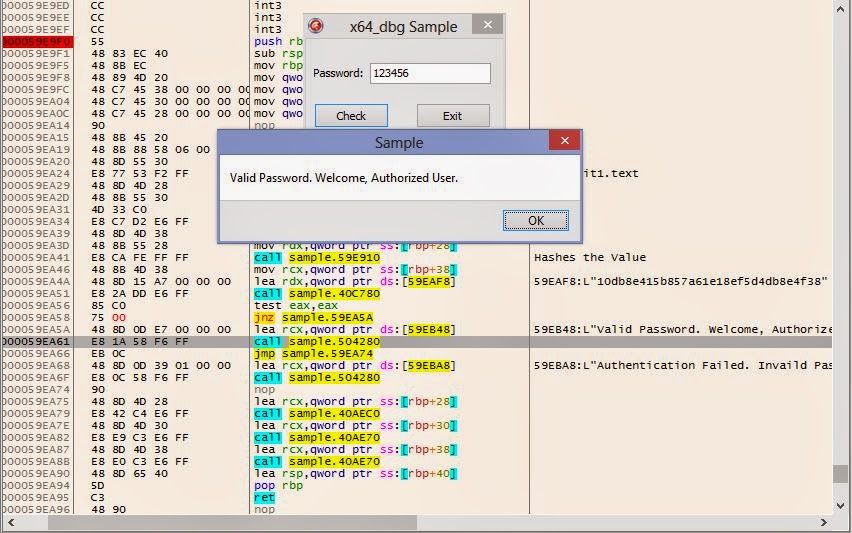
As you can see, anything we enter now will be the correct password. However, this patch only affects the memory of the process. Once we restart the program, this patch will be gone. If you want to make this patch permanent, you can save this to disk. This will make a modified copy of our executable that will always accept a fake password. To do so, we open the patch dialog by clicking the button with the bandage on it at the top.
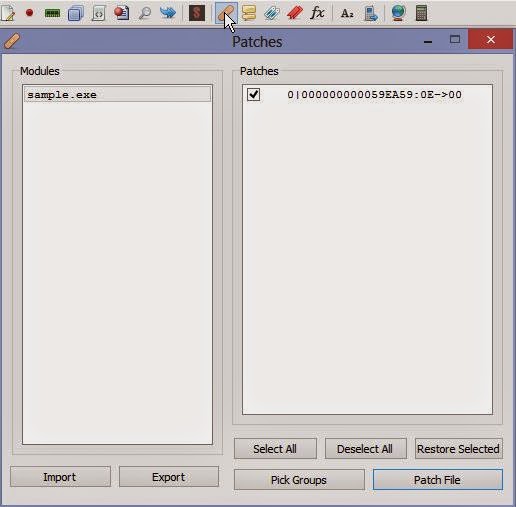
Once this is opened, we can check the patch you want to save, and this click Patch file. This will allow you to save the modified program directly on disk under any name that you specify.
Now, since we know how the algorithm works, let’s see if we can break the password. Online there are multiple databases that will check if they have a solution to your hash. In order to copy the built in hash as a string, we need to follow the value in the dump.To do so, right click on the instruction which points to the built in hash and go to Follow in Dump -> Address.

Now that we are in the dump, we need to highlight the hex values of the hash string, right click, and the click edit.

This will allow us to simply copy the string directly to our clipboard. Now that we have the hash, we can paste it into a hash solver such as the one available at hashkiller.co.uk.

Amazingly, it has found a solution saying that the password is ba321c. Let’s open the unmodified program or restart the one in our debugger and try this value in the password field.

Using our minds and taking this simple approach, we have found the password.
This concludes this introductory tutorial for x64_dbg. This is a very powerful reverse engineering tool that offers a wide range of features and flexibility to accomplish even the most difficult tasks. We are very fortunate that the author has made this free and open source. We should always take the time to thank the developer who has worked hard on this with a small donation or contribution. I hope you found this tutorial helpful. If you have any questions, feel free to ask them below. Until next time, happy reversing.
Source: http://reverseengineeringtips.blogspot.co.id/2015/01/an-introduction-to-x64dbg.html
Contoh bridging BPJS dengan PHP (Cari nama peserta berdasarkan NIK)
<?php
$data = "1234"; //Ganti dengan consumerID dari BPJS
$secretKey = "5678"; //Ganti dengan consumerSecret dari BPJS
$url = "http://api.asterix.co.id/SepWebRest/peserta/nik/";  //Lihat katalog
$nik = "3302014525481245";  //ganti dengan NIK (nomor KTP)

date_default_timezone_set('UTC');
$tStamp = strval(time()-strtotime('1970-01-01 00:00:00'));
$signature = hash_hmac('sha256', $data."&".$tStamp, $secretKey, true);
$encodedSignature = base64_encode($signature);
$urlencodedSignature = urlencode($encodedSignature);

echo "X-cons-id: " .$data ."<br>";
echo "X-timestamp:" .$tStamp ."<br>";
echo "X-signature: " .$encodedSignature."<br>";

$opts = array(
 'http'=>array(
 'method'=>"GET",
 'header'=>"Host: api.asterix.co.id\r\n".
 "Connection: close\r\n".
 "X-timestamp: ".$tStamp."\r\n".
 "X-signature: ".$encodedSignature."\r\n".
 "User-Agent: Mozilla/5.0 (Windows NT 6.3; Win64; x64)\r\n".
 "X-cons-id: ".$data."\r\n".
 "Accept: application/json\r\n"
 )
);

$context = stream_context_create($opts);

$result = file_get_contents($url.$nik, false, $context);
echo "<br>Respon:";
if ($result === false)
{
 echo "Tidak dapat menyambung ke server";
} else {
 $resultarr=json_decode($result, true);
 $s=$resultarr['response']['start'];
 $l=$resultarr['response']['limit'];
 $c=$resultarr['response']['count'];

 echo "<br>Ditemukan ".$c." data, tampil mulai dari nomor ".$s." hingga nomor ".$l."<br>";
 for($i=0;$i<$c;$i++){
     echo "<h1>Nama: ".$resultarr['response']['list'][$i]['nama']."</h1>";
 }

 echo "<pre>";
 //print_r($resultarr['response']);
 echo "</pre>";
}

?>
Sumber rujukan:http://api.bpjs-kesehatan.go.id
Pemanfaatan curl untuk ‘http request’ (POST dan GET) pada PHP
<?php

if(!isset($_GET['curltype'])){
 echo "usage: curlpostget.php?curltype=post or curlpostget.php?curltype=get";
 exit(1);
}


function curl_post($url, array $postdata = NULL, array $options = array())
{
 $defaults = array(
 CURLOPT_POST => 1,
 CURLOPT_HEADER => 0,
 CURLOPT_URL => $url,
 CURLOPT_FRESH_CONNECT => 1,
 CURLOPT_RETURNTRANSFER => 1,
 CURLOPT_FORBID_REUSE => 1,
 CURLOPT_TIMEOUT => 460,
 CURLOPT_POSTFIELDS => http_build_query($postdata)
 );

$ch = curl_init();
 curl_setopt_array($ch, ($options + $defaults));
 if( ! $result = curl_exec($ch))
 {
 trigger_error(curl_error($ch));
 }
 curl_close($ch);
 return $result;
}

function curl_get($url, array $getdata = NULL)
{
 $params = '';
 foreach($getdata as $key=>$value)
 $params .= $key.'='.urlencode($value).'&';

 $params = trim($params, '&');
 $ch = curl_init();
 curl_setopt($ch, CURLOPT_URL, $url.'?'.$params );
 curl_setopt($ch, CURLOPT_RETURNTRANSFER, 1);
 curl_setopt($ch, CURLOPT_CONNECTTIMEOUT , 70); //7 detik
 curl_setopt($ch, CURLOPT_USERAGENT , "Mozilla/4.0 (compatible; MSIE 8.0; Windows NT 6.1)");
 curl_setopt($ch, CURLOPT_HEADER, 0);

 if( ! $result = curl_exec($ch))
 {
 trigger_error(curl_error($ch));
 }
 curl_close($ch);
 return $result;
}

$url = 'https://latiful.hayat.web.id/test/postgetresponse.php';
 $data = array(
 'id'=>'application/x-www-form-urlencoded',
 'key'=>"! * ' ( ) ; : @ & = + $ , / ? % # [ ]"
 );

if($_GET['curltype']=='post'){
 $result = curl_post($url,$data);
 }

 if($_GET['curltype']=='get'){
 $result = curl_get($url,$data);
 }

 echo $result;
?>
Koneksi PHP & Port Serial
Koneksi php ke serialport dengan menggunakan php_dio pada sistem operasi Windows. Caranya adalah dengan menyalin file dll ke subforder ext pada folder php. Edit file php.ini dengan menambahkan
extension = php_dio.dll (pada windows)
Hentikan (stop) server apache dan jalankan ulang.
Buat sketch arduino untuk menyalakan lampu jika serial menerima huruf w dan mematikan lampu jika serial menerima huruf s, dengan kode berikut:
void setup() {

pinMode(13,OUTPUT);

Serial.begin(9600);

}
void loop() {
if (Serial.available()) {
char inChar = (char)Serial.read();
if (inChar == 'w') {
digitalWrite(13,HIGH);
}
if (inChar == 's') {
digitalWrite(13,LOW);
}
}
}
Buat file serial.php pada forder httdoc dengan kode berikut :
<?php
//ganti com31 dengan alamat port yang digunakanexec('mode com31: baud=9600 data=8 stop=1 parity=n xon=on');
//ganti COM31 dengan alamat port yang digunakan$fd = dio_open('\\\\.\COM31', O_RDWR);
sleep(2);
if(isset($_GET['lampu']))
$data = dio_write($fd, $_GET['lampu']);
?>
Ganti alamat port yang digunakan untuk koneksi. Coba dengan membuka firefox atau browser lain dengan alamat http://IPKOMPUTER/serial.php?lampu=w maka lampu menyala. Jika dibuka alamat http://IPKOMPUTER/serial.php?lampu=s maka lampu mati.