Setting 32-bit x86 build target in Visual C# 2008 Express Edition

In VC# Express, this property is missing, but you can still create an x86 configuration if you know where to look.

It looks like a long list of steps, but once you know where these things are it’s a lot easier. Anyone who only has VC# Express will probably find this useful. Once you know about Configuration Manager, it’ll be much more intuitive the next time.

  1. In VC# Express 2005, go to Tools -> Options.
  2. In the bottom-left corner of the Options dialog, check the box that
    says, “Show all settings”.
  3. In the tree-view on the left hand side, select “Projects and Solutions”.
  4. In the options on the right, check the box that says, “Show advanced
    build configuraions.”
  5. Click OK.
  6. Go to Build -> Configuration Manager…
  7. In the Platform column next to your project, click the combobox and select
    “”.
  8. In the “New platform” setting, choose “x86”.
  9. Click OK.
  10. Click Close.

There, now you have an x86 configuration! Easy as pie! 🙂

I also recommend using Configuration Manager to delete the Any CPU platform. You really don’t want that if you ever have depedencies on 32-bit native DLLs (even indirect dependencies).

An Introduction To x64dbg

An Introduction To x64dbg

Welcome to this short, introductory tutorial for using x64dbg by Mr. Exodia. The goal of this tutorial is to teach you some of the fundamentals of the x64dbg and show you how closely its features and flexibility resembles its close cousin Ollydbg.While x64dbg is still in an alpha stage, its bugs are minor and few with only a crash happening under unlikely conditions.

1. The Configuration.
Configuring x64dbg is quite simple since the menu is much more concise than ollydbg, making the process much more user friendly. To access the configuration dialog, simply go to the Options menu and click Preferences. In the first tab labeled Events, you can configure what events you want x64_dbg to break on when they occur.

The configuration in the screenshot above is what I typically recommend and use for simple debugging. The options here are just like those found in ollydbg 1.10 with a few additional features. Here is the gist of what these features do.

System Breakpoint: When loading a new process, the will cause x64dbg to break in the system function which initializes the application you are attempting to debug.

TLS Callbacks: The TLS Callback is a function which is called before the main application runs. This can set parameters or even be used by certain protectors to implement anti-debug technology. This allows you to break on this function.

Entry Breakpoint: This causes x64dbg to break on the Entry point on the application. For general debugging, this is the only breakpoint you will need to have checked.

DLL Entry: This will break on the entry point of any DLL which is loaded by the process you are debugging.

Thread Entry: This will break on the first instruction of any new thread initialized by the current process.

Attach Breakpoint: When this is checked, it will cause x64dbg to break in the DbgUiRemoteBreakin function when attaching to an active process. If unchecked, it will attach without suspending the process.


DLL Load/DLL Unload: This will break in the system function when a new library(DLL) is loaded into or unloaded from the active process. The DLL Load breakpoint occurs before any of its code is executed.

Thread Start/Thread End: This allows us to break in system when our debugged application initializes or terminates a thread.

In the Engine pane, you will find a few advanced settings for the debugging engine. This should just be left as default in most cases, but here is a rundown of how they work.

Enable Debug Privilege: This allows you to attach to system processes.
Breakpoint Type: This feature allows you to try different types of breakpoints if your program detects or blocks the default INT3.
Undecorate Symbol Names: This makes symbol names look cleaner. It is an aesthetic feature.

In the Exceptions pane, you can tell x64_dbg which exceptions you would like to ignore and pass to the program. Leaving this blank will let x64_dbg break on every exception. If you want to ignore all exceptions, add the range 0-ffffffff using the Add Range button. The Add Last button will allow you to add the most recent exception which the program you are currently debugging incurred to the ignore list.

We can use the Disasm pane in order to change the appearance of the disassembled instructions. Here is a gist of what these options do.

Argument Spaces: This will put a space after every argument changing mov rax,rdx to mov rax, rdx. It essentially puts a space after every comma.

Memory Spaces: This puts a space in between memory reference instructions and their operators. This causes mov eax, byte ptr ds:[edx+18] to look like mov eax, byte ptr ds:[edx + 18].

Uppercase: This changes all of the text to uppercase.

Autocomments only on CIP: This will remove all comments, including references from the current disassembly except at the instruction pointer.

The Misc tab allows you to configure x64_dbg to be the Just in Time Debugger so that the system can attach it to a process whenever a problem occurs.

1. Debugging x64_dbg Sample:
In order to make this tutorial a little more hands on, I created a little program called x64_dbg Sample. It and its source are available for download directly from the x64_dbg sourceforge directory at the following link:
http://sourceforge.net/projects/x64dbg/files/extra/

Once you have downloaded this, extract it from the archive and let’s open it in x64_dbg. To do so, you can start x64_dbg and drag and drop the file into the disassembly window or use the File -> Open option to do the same. Alternately, you can let the default x64_dbg program automatically register a shell extension for you so you can open files through the right click menu.

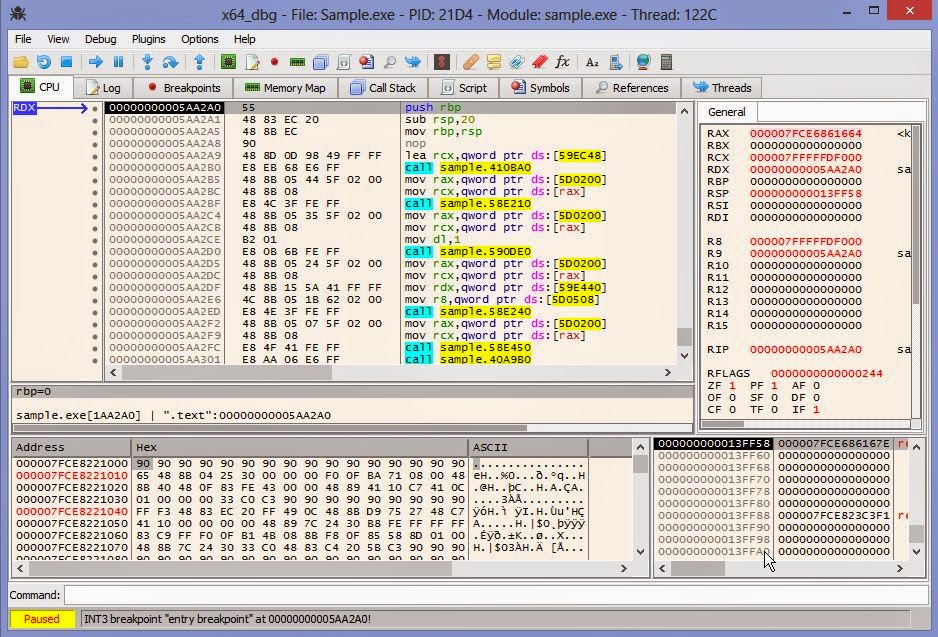
Once you have opened it and you had previously configured the event settings to Entry Point only, you should be at the entry point of the main module. In the interface, you will see that x64_dbg has many of the same shortcut keys as ollydbg.

In the debug menu, you can see that x64_dbg has the same hotkeys as Ollydbg. These commands provide some of the key operations that you will need to use in your regular debugging activities.

Run(F9): This starts or resumes the process normally.

Run(skip exceptions) (Shift+f9): This will resume the process while passing the current and all following exceptions to the process.

Pause(F12): This suspends the current process.

Restart(Ctrl+F2): This terminates the debugged process and reloads it.

Close(Alt+F4): This terminates and unloads the debugged process.

Step Into(F7): This allows us to enter a routine or execute the next step in a repeat instruction.


Step Into(skip exceptions)(Shift+F7): This allows us to enter a routine or execute the next step in a repeat instruction while passing the current exception to the application.

Step Over(F8): This allows you to execute an entire subroutine or repeat instruction without stepping through it instruction by instruction.

Step Over(skip exceptions)(Shift+F8): This allows you to execute an entire subroutine or repeat instruction without stepping through it instruction by instruction while passing the current exception to the application.

Execute Till Return(Ctrl+F9): This resumes the process until a return instruction is executed.

Execute Till Return(skip exceptions)(Ctrl+Shift+F9): This resumes the process until a return instruction is executed while passing the current exception to the application.

Breakpoints:
When you are debugging, one of the primary features you want to use is called breakpoints. There are 3 main types of breakpoints. We will briefly discuss these here.

Execution Breakpoint: This is the most common and most used type of breakpoint. When you toggle a breakpoint on a specific address, this tell the
debugger to stop when that address is reached in the execution. To use this, simply press the F2 when over an address you would like to break on.

Memory Breakpoint: A memory breakpoint is used to pause an application when a specific area of memory is either accessed, written to, or executed. This is handy when you want to determine when or if a specific area of memory is used by the program. This is available in the right click menu of the memory map window and dump pane.

Hardware Breakpoint: A hardware breakpoint is used to pause an application when a particular address is either written to, read, or executed. This is specifically useful to determine when a particular variable is set. This can be used for byte, word, and dword reads and writes. This feature is available in the right click menu of the hex dump.

Let’s Begin:
Now that we have a general understanding of the features in x64_dbg, we can begin debugging our first target. We already have our target loaded into x64_dbg, so let’s Run it by pressing F9. As you can see, the application begins to run with the debugger attached to it. At this point, we can pause the application in x64_dbg and take a look at a few of its features. To pause the application, press F12.

When we pause, we arrive inside of a break-in thread created by x64_dbg. In order to get back to the main thread, we simply click the threads tab and double click on the one labeled main.

Once we arrive in the Main Thread, we can start stepping through the routines and analyzing the call stack. The Call Stack window gives you an extensive list of the functions and procedures(routines) which brought you to your current location. You can use this window to analyze these routines and learn about your application’s execution routine. Just double click the one you would like to follow in the disassembler.

The Memory Map pane will show us all of the sections or regions of RAM  allocated to and by our application and its dependencies.

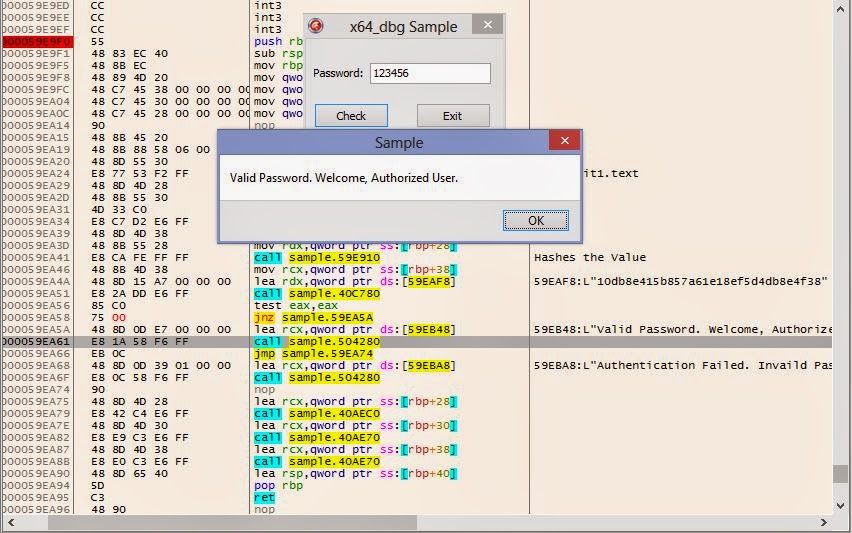
Let’s go ahead and resume the process by pressing F9. Let’s attempt to enter the fake password ‘123456’ into the application and see what message is returned when we click Check.

As we see, this is not a valid password because of the message ‘Authentication Failed. Invalid Password!‘ Now that we know the message, let’s use the built-in find referenced strings function in x64_dbg to see if we can locate this string inside of the application.To do this, we first need to verify that we are currently inside of the application module. Once this is verified, we can either click on the ‘A’ button on the top pane of x64_dbg, or left click in the disassembly pane and go to Search for -> String references.

This will build up a listing of all of the strings referenced in the application’s code. Once you build up a list, we can use the search pane to filter the list and find the location of this string. However, since this is small application, a simple scroll to the bottom will reveal the location of where our string is referenced, as well as some other interesting strings.

Double clicking any of these will take you to their location in the disassembly pane. You can also toggle a breakpoint on these references by simply pressing F2. Let’s follow the ‘Authentication Failed..’ string and see where it takes us.

In the picture above, I have set a breakpoint at the beginning of the function which checks our password. I have also added some comments beside of a few of the calls so that we can understand this a little better. If we were to step through this using f8, which steps over the calls, we can see the process. Let’s toggle the breakpoint at the beginning of this function using F2, enter the value of 123456 into the password box and click Check. We will immediately break on our breakpoint. As we step, you will notice that we will get the password we entered in the text field and then hash it with the built in algorithm.

As we can see, our password is being run through a digest or hashing algorithm and being compared to a precalculated value which is stored in the program as a string. To determine which hash algorithm type this program is using, we can use my software hashing utility to compare the results for the string ‘123456’. In the debug sample, the hash returned for ‘123456’ is ‘e10adc3949ba59abbe56e057f20f883e’. Let’s see which algorithm produces the same.

It appears that our hash algorithm is MD5. Since the hash is compared to a hardcoded value, it may take a long time to bruteforce or recover the original password. Using x64_dbg, we have the ability to patch or modify the instructions so that it can accept any password as valid. In the code above, our hashes are compared. If they are equal to each other, the program tells us the password is valid. If not, we are told it is invalid. Using the built in assembler, we can change the location of where the comparison jump lands. That means if we change it to the next instruction, it will always show that the password is valid regardless of what we enter. To use the assembler, we simply press the space bar when we are over top of the instruction we want to change.

Normally, this would jump to VA 59EA68 if the password is invalid. Here, we will simply change the address to 59EA5A so that it will always go to the valid password code regardless of what we enter into the field. After we click OK, the instruction is immediately modified in memory. Now that we have patched, let’s test the ‘123456’ password again.

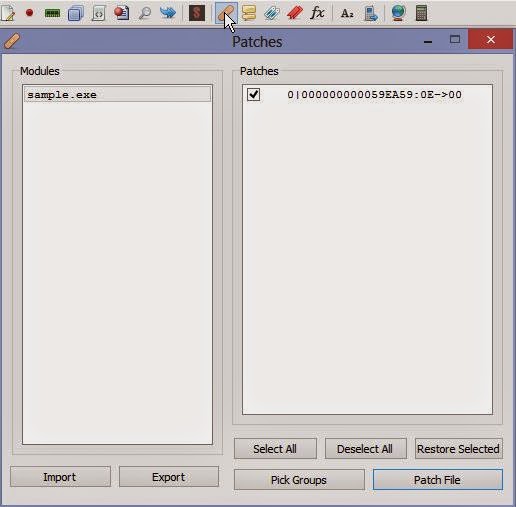
As you can see, anything we enter now will be the correct password. However, this patch only affects the memory of the process. Once we restart the program, this patch will be gone. If you want to make this patch permanent, you can save this to disk. This will make a modified copy of our executable that will always accept a fake password. To do so, we open the patch dialog by clicking the button with the bandage on it at the top.

Once this is opened, we can check the patch you want to save, and this click Patch file. This will allow you to save the modified program directly on disk under any name that you specify.

Now, since we know how the algorithm works, let’s see if we can break the password. Online there are multiple databases that will check if they have a solution to your hash. In order to copy the built in hash as a string, we need to follow the value in the dump.To do so, right click on the instruction which points to the built in hash and go to Follow in Dump -> Address.

Now that we are in the dump, we need to highlight the hex values of the hash string, right click, and the click edit.

This will allow us to simply copy the string directly to our clipboard. Now that we have the hash, we can paste it into a hash solver such as the one available at hashkiller.co.uk.

Amazingly, it has found a solution saying that the password is ba321c. Let’s open the unmodified program or restart the one in our debugger and try this value in the password field.

Using our minds and taking this simple approach, we have found the password.

This concludes this introductory tutorial for x64_dbg. This is a very powerful reverse engineering tool that offers a wide range of features and flexibility to accomplish even the most difficult tasks. We are very fortunate that the author has made this free and open source. We should always take the time to thank the developer who has worked hard on this with a small donation or contribution. I hope you found this tutorial helpful. If you have any questions, feel free to ask them below. Until next time, happy reversing.

Source: http://reverseengineeringtips.blogspot.co.id/2015/01/an-introduction-to-x64dbg.html
Contoh bridging BPJS dengan PHP (Cari nama peserta berdasarkan NIK)

<?php
$data = "1234"; //Ganti dengan consumerID dari BPJS
$secretKey = "5678"; //Ganti dengan consumerSecret dari BPJS
$url = "http://api.asterix.co.id/SepWebRest/peserta/nik/";  //Lihat katalog
$nik = "3302014525481245";  //ganti dengan NIK (nomor KTP)

date_default_timezone_set('UTC');
$tStamp = strval(time()-strtotime('1970-01-01 00:00:00'));
$signature = hash_hmac('sha256', $data."&".$tStamp, $secretKey, true);
$encodedSignature = base64_encode($signature);
$urlencodedSignature = urlencode($encodedSignature);

echo "X-cons-id: " .$data ."<br>";
echo "X-timestamp:" .$tStamp ."<br>";
echo "X-signature: " .$encodedSignature."<br>";

$opts = array(
 'http'=>array(
 'method'=>"GET",
 'header'=>"Host: api.asterix.co.id\r\n".
 "Connection: close\r\n".
 "X-timestamp: ".$tStamp."\r\n".
 "X-signature: ".$encodedSignature."\r\n".
 "User-Agent: Mozilla/5.0 (Windows NT 6.3; Win64; x64)\r\n".
 "X-cons-id: ".$data."\r\n".
 "Accept: application/json\r\n"
 )
);

$context = stream_context_create($opts);

$result = file_get_contents($url.$nik, false, $context);
echo "<br>Respon:";
if ($result === false) 
{ 
 echo "Tidak dapat menyambung ke server"; 
} else { 
 $resultarr=json_decode($result, true);
 $s=$resultarr['response']['start'];
 $l=$resultarr['response']['limit'];
 $c=$resultarr['response']['count'];
 
 echo "<br>Ditemukan ".$c." data, tampil mulai dari nomor ".$s." hingga nomor ".$l."<br>";
 for($i=0;$i<$c;$i++){
     echo "<h1>Nama: ".$resultarr['response']['list'][$i]['nama']."</h1>";
 }
 
 echo "<pre>";
 //print_r($resultarr['response']); 
 echo "</pre>";
}

?>

Sumber rujukan:http://api.bpjs-kesehatan.go.id

Pemanfaatan curl untuk ‘http request’ (POST dan GET) pada PHP

<?php

if(!isset($_GET['curltype'])){
 echo "usage: curlpostget.php?curltype=post or curlpostget.php?curltype=get";
 exit(1);
}


function curl_post($url, array $postdata = NULL, array $options = array())
{
 $defaults = array(
 CURLOPT_POST => 1,
 CURLOPT_HEADER => 0,
 CURLOPT_URL => $url,
 CURLOPT_FRESH_CONNECT => 1,
 CURLOPT_RETURNTRANSFER => 1,
 CURLOPT_FORBID_REUSE => 1,
 CURLOPT_TIMEOUT => 460,
 CURLOPT_POSTFIELDS => http_build_query($postdata)
 );

$ch = curl_init();
 curl_setopt_array($ch, ($options + $defaults));
 if( ! $result = curl_exec($ch))
 {
 trigger_error(curl_error($ch));
 }
 curl_close($ch);
 return $result;
}

function curl_get($url, array $getdata = NULL)
{
 $params = '';
 foreach($getdata as $key=>$value)
 $params .= $key.'='.urlencode($value).'&';
 
 $params = trim($params, '&');
 $ch = curl_init();
 curl_setopt($ch, CURLOPT_URL, $url.'?'.$params ); 
 curl_setopt($ch, CURLOPT_RETURNTRANSFER, 1); 
 curl_setopt($ch, CURLOPT_CONNECTTIMEOUT , 70); //7 detik
 curl_setopt($ch, CURLOPT_USERAGENT , "Mozilla/4.0 (compatible; MSIE 8.0; Windows NT 6.1)");
 curl_setopt($ch, CURLOPT_HEADER, 0);
 
 if( ! $result = curl_exec($ch))
 {
 trigger_error(curl_error($ch));
 }
 curl_close($ch);
 return $result;
}

$url = 'https://latiful.hayat.web.id/test/postgetresponse.php';
 $data = array(
 'id'=>'application/x-www-form-urlencoded',
 'key'=>"! * ' ( ) ; : @ & = + $ , / ? % # [ ]"
 );

if($_GET['curltype']=='post'){ 
 $result = curl_post($url,$data);
 }
 
 if($_GET['curltype']=='get'){ 
 $result = curl_get($url,$data);
 }
 
 echo $result;
?>

Belajar Bahasa Arab 01

I’RAB ISIM ,ISIM MARFU ,ISIM MANSHUB ,ISIM MAJRUR

إِعْرَاب اْلاِسْم
I’RAB ISIM

I’rab ialah perubahan baris/bentuk yang terjadi di belakang sebuah kata sesuai dengan kedudukan kata tersebut dalam susunan kalimat. Pada dasarnya, Isim bisa mengalami tiga macam I’rab yaitu:

1. I’RAB RAFA’ ( رَفْع ) atau Subjek; dengan tanda pokok: Dhammah ( ُ )
2. I’RAB NASHAB (
نَصْب ) atau Objek; dengan tanda pokok: Fathah ( َ )
3. I’RAB JARR (
جَرّ ) atau Keterangan; dengan tanda pokok: Kasrah ( ِ )

Perhatikan contoh dalam kalimat di bawah ini:

جَاءَ الطُّلاَّبُ = datang siswa-siswa

رَأَيْتُ الطُّلاَّبَ

= aku melihat siswa-siswa

سَلَّمْتُ عَلَى الطُّلاَّبِ

= aku memberi salam kepada siswa-siswa

Isim الطُّلاَّب (=siswa-siswa) pada contoh di atas mengalami tiga macam I’rab:

1) I’rab Rafa’ (Subjek) dengan tanda Dhammah di huruf akhirnya ( الطُّلاَّبُ )
2)
I’rab Nashab (Objek) dengan tanda Fathah di huruf akhirnya ( الطُّلاَّبَ )
3)
I’rab Jarr (Keterangan) dengan tanda Kasrah di huruf akhirnya ( الطُّلاَّبِ )

Alamat I’rab seperti ini dinamakan Alamat Ashliyyah (عَلاَمَات اْلأَصْلِيَّة) atau tanda-tanda asli (pokok).

Perlu diketahui bahwa tidak semua Isim bisa mengalami I’rab atau perubahan baris/bentuk di akhir kata. Dalam hal ini, Isim terbagi dua:

1) ISIM MU’RAB ( اِسْم مُعْرَب ) yaitu Isim yang bisa mengalami I’rab. Kebanyakan Isim adalah Isim Mu’rab artinya bisa berubah bentuk/baris akhirnya, tergantung kedudukannya dalam kalimat.

2) ISIM MABNI ( اِسْم مَبْنِي ) yaitu Isim yang tidak terkena kaidah-kaidah I’rab. Yang termasuk Isim Mabni adalah: Isim Dhamir (Kata Ganti), Isim Isyarat (Kata Tunjuk), Isim Maushul (Kata Sambung), Isim Istifham (Kata Tanya).

Perhatikan contoh Isim Mabni dalam kalimat-kalimat di bawah ini:

جَاءَ هَؤُلاَءِ

= datang (mereka) ini

رَأَيْتُ هَؤُلاَءِ = aku melihat (mereka) ini
سَلَّمْتُ عَلَى هَؤُلاَءِ = aku memberi salam kepada (mereka) ini

Dalam contoh-contoh di atas terlihat bahwa Isim Isyarah هَؤُلاَءِ (=ini) tidak mengalami I’rab atau perubahan baris/bentuk di akhir kata, meskipun kedudukannya dalam kalimat berubah-ubah, baik sebagai Subjek, Objek maupun Keterangan. Isim Isyarah termasuk diantara kelompok Isim Mabni.

Bila anda telah memahami baik-baik tentang pengertian I’rab dan tanda-tanda aslinya, marilah kita melanjutkan pelajaran tentang Isim Mu’rab.

اِسْم مَرْفُوْع
ISIM MARFU’

Isim yang mengalami I’rab Rafa’ dinamakan Isim Marfu’ yang terdiri dari:

1) Mubtada’ (Subjek) dan Khabar (Predikat) pada Jumlah Ismiyyah (Kalimat Nominal). Perhatikan contoh-contoh Jumlah Ismiyyah di bawah ini:

اَلْبَيْتُ كَبِيْرٌ

= rumah itu besar

اَلْبَيْتُ كَبِيْرٌ جَمِيْلٌ = rumah itu besar (lagi) indah
اَلْبَيْتُ الْكَبِيْرُ جَمِيْلٌ

= rumah besar itu indah

اَلْبَيْتُ الْكَبِيْرُ جَمِيْلٌ غَالٌ

= rumah besar itu indah (lagi) mahal

Dalam contoh di atas terlihat bahwa semua Isim yang terdapat dalam Jumlah Ismiyyah adalah Marfu’ (mengalami I’rab Rafa’), tandanya adalah Dhammah.

2) Fa’il (Subjek Pelaku) atau Naib al-Fa’il (Pengganti Subjek Pelaku) pada Jumlah Fi’liyyah (Kalimat Verbal). Contoh:

جَاءَ مُحَمَّدٌ

= Muhammad datang

يَغْلِبُ عُمَرُ = Umar menang
يُغْلَبُ الْكَافِرُ

= orang kafir itu dikalahkan

لُعِنَ الشَّيْطَانُ = syaitan itu dilaknat

مُحَمَّدٌ (=Muhammad) –> Fa’il –> Marfu’ dengan tanda Dhammah
عُمَرُ (=Umar) –> Fa’il –> Marfu’ dengan tanda Dhammah
الْكَافِرُ (=orang kafir) –> Naib al-Fa’il –> Marfu’ dengan tanda Dhammah.
الشَّيْطَانُ (=syaitan) –> Naib al-Fa’il –> Marfu’ dengan tanda Dhammah.

Pahamilah baik-baik semua kaidah-kaidah yang terdapat dalam pelajaran ini sebelum melangkah ke pelajaran selanjutnya.

اِسْم مَنْصُوْب
ISIM MANSHUB

Isim yang terkena I’rab Nashab disebut Isim Manshub. Yang menjadi Isim Manshub adalah semua Isim selain Fa’il atau Naib al-Fa’il dalam Jumlah Fi’liyyah.

1) MAF’UL (مَفْعُوْل) yakni Isim yang dikenai pekerjaan (Objek Penderita).

قَرَأَ مُحَمَّدٌ الْقُرْآنَ

= Muhammad membaca al-Quran

القُرْآنَ (= al-Quran) –> Maf’ul –> Manshub dengan tanda fathah.

2) MASHDAR ( مَصْدَر ) yakni Isim yang memiliki makna Fi’il dan berfungsi untuk menjelaskan atau menegaskan (menguatkan) arti dari Fi’il.

قَرَأَ مُحَمَّدٌ الْقُرْآنَ تَرْتِيْلاً

= Muhammad membaca al-Quran dengan tartil (perlahan-lahan)

تَرْتِيْلاً (= perlahan-lahan) –> Mashdar –> Manshub dengan tanda fathah.

3) HAL ( حَال ) ialah Isim yang berfungsi untuk menjelaskan keadaan Fa’il atau Maf’ul ketika berlangsungnya pekerjaan.

قَرَأَ مُحَمَّدٌ الْقُرْآنَ خَاشِعًا

= Muhammad membaca al-Quran dengan khusyu’

خَاشِعًا (= orang yang khusyu’) –> Hal –> Manshub dengan tanda fathah.

4) TAMYIZ ( تَمْيِيْز ) ialah Isim yang berfungsi menerangkan maksud dari Fi’il dalam hubungannya dengan keadaan Fa’il atau Maf’ul.

قَرَأَ مُحَمَّدٌ الْقُرْآنَ عِبَادَةً

= Muhammad membaca al-Quran sebagai suatu ibadah

عِبَادَةً (= ibadah) –> Tamyiz –> Manshub dengan tanda fathah.

5) ZHARAF ZAMAN (ظَرْف زَمَان) atau Keterangan Waktu dan ZHARAF MAKAN (ظَرْف مَكَان) atau Keterangan Tempat.

قَرَأَ مُحَمَّدٌ الْقُرْآنَ لَيْلاً

= Muhammad membaca al-Quran pada suatu malam

لَيْلاً (= malam) –> Zharaf Zaman –> Manshub dengan tanda fathah.

Diantara Zharaf Zaman: يَوْمَ (=pada hari), اَلْيَوْمَ (=pada hari ini), لَيْلاً (=pada malam hari), نَهَارًا (=pada siang hari), صَبَاحًا (=pada pagi hari), مَسَاءً (=pada sore hari), غَدًا (=besok), اْلآنَ (=sekarang), dan sebagainya.
Diantara Zharaf Makan:
أَمَامَ (=di depan), خَلْفَ (=di belakang), وَرَاءَ (=di balik), فَوْقَ (=di atas), تَحْتَ (=di bawah), عِنْدَ (=di sisi), حَوْلَ (=di sekitar), بَيْنَ (=di antara), جَانِبَ (=di sebelah), dan sebagainya.

6) Mudhaf yang berfungsi sebagai MUNADA (

مُنَادَى) atau Seruan/Panggilan.
رَسُوْلُ اللهِ
(=Rasul Allah) adalah Mudhaf-Mudhaf Ilaih, bila berfungsi sebagai Munada, maka kata رَسُوْل (=Rasul) sebagai Mudhaf menjadi Manshub.

يَا رَسُوْلَ اللهِ

= Wahai Rasul Allah

Sedangkan bila Munada itu adalah Isim Mufrad yang bukan merupakan Mudhaf-Mudhaf Ilaih, maka Isim tersebut tetap dalam bentuk Marfu’. Contoh:

يَا مُحَمَّدُ

= Wahai Muhammad

7) MUSTATSNA ( مُسْتَثْنَى ) atau Perkecualian ialah Isim yang terletak sesudah ISTITSNA (اِسْتِثْنَى ) atau Pengecuali. Contoh:

حَضَرَ الطُّلاَّبُ إِلاَّ زَيْدًا

= para siswa telah hadir kecuali Zaid

إِلاَّ (=kecuali) –> Istitsna (Pengecuali).
زَيْدًا (=Zaid) –> Mustatsna (Perkecualian) –> Manshub dengan tanda Fathah

Kata-kata yang biasa menjadi Istitsna antara lain:

إِلاَّ – غَيْرَ – سِوَى – خَلاَ – عَدَا – حِشَا
Semuanya biasa diterjemahkan: kecuali, selain.Isim yang berkedudukan sebagai Mustatsna tidak selalu harus Manshub. Mustatsna bisa menjadi Marfu’ dalam keadaan sebagai berikut:

a) Bila berada dalam Kalimat Negatif dan Subjek yang dikecualikan darinya disebutkan. Maka Mustatsna boleh Manshub dan boleh Marfu’. Contoh:

مَا قَامَ الطُّلاَّبُ إِلاَّ زَيْدًا

= para siswa tidak berdiri kecuali Zaid

مَا قَامَ الطُّلاَّبُ إِلاَّ زَيْدٌ

= para siswa tidak berdiri kecuali Zaid

Kalimat di atas adalah Kalimat Negatif (ada kata: tidak) dan disebutkan Subjek yang dikecualikan darinya yaitu الطُّلاَّبُ (=para siswa) maka Mustatsna boleh Manshub dan boleh pula Marfu’ (زَيْدًا atau زَيْدٌ).

b) Bila Mustatsna berada dalam kalimat Negatif dan Subjek yang dikecualikan darinya tidak disebutkan sedangkan Mustatsna itu berkedudukan sebagai Fa’il maka ia harus mengikuti kaidah I’rab yakni menjadi Marfu’. Contoh:

مَا قَامَ إِلاَّ زَيْدٌ

= tidak berdiri kecuali Zaid

Mustatsna menjadi Marfu’ karena berkedudukan sebagai Fa’il (زَيْدٌ) dan berada dalam Kalimat Negatif yang tidak disebutkan Subjek yang dikecualikan darinya.

اِسْم مَجْرُوْر
ISIM MAJRUR

Isim yang terkena I’rab Jarr disebut Isim Majrur yang terdiri dari:

1) Isim yang diawali dengan Harf Jarr. Yang termasuk Harf Jarr adalah: بِ (=dengan), لِ (=untuk), فِيْ (=di, dalam), عَلَى (=atas), إِلَى (=ke), مِنْ (=dari), كَـ (=bagai), حَتَّى (=hingga), وَ / تَـ untuk sumpah (=demi …).

Perhatikan contoh-contoh berikut:

أَعُوْذُ بِاللهِ = aku berlindung kepada Allah
أُصَلِّيْ فِي الْمَسْجِدِ

= aku shalat di masjid

وَالْعَصْرِ = demi masa!

الله / الْمَسْجِد/ الْعَصْر pada kalimat-kalimat di atas adalah Isim Majrur karena didahului/dimasuki oleh Harf Jarr. Tanda Majrurnya adalah Kasrah.

2) Isim yang berkedudukan sebagai Mudhaf Ilaih. Contoh:

رَسُوْلُ اللهِ (=Rasul Allah) –> رَسُوْلُ [Mudhaf], اللهِ [Mudhaf Ilaih]
أَهْلُ
الْكِتَابِ (=ahlul kitab) –> أَهْلُ [Mudhaf], الْكِتَابِ [Mudhaf Ilaih]

Mudhaf Ilaih selalu sebagai Isim Majrur, sedangkan Mudhaf (Isim di depannya) bisa dalam bentuk Marfu’, Manshub maupun Majrur, tergantung kedudukannya dalam kalimat. Perhatikan contoh-contoh kalimat di bawah ini:

قَالَ رَسُوْلُ اللهِ

= berkata Rasul Allah

أُحِبُّ رَسُوْلَ اللهِ

= saya mencintai Rasul Allah

نُؤْمِنُ بِرَسُوْلِ اللهِ = kami beriman kepada Rasul Allah

Dalam contoh-contoh di atas, Isim رَسُوْل merupakan Mudhaf dan bentuknya bisa Marfu’ (contoh pertama), Manshub (contoh kedua) maupun Majrur (contoh ketiga). Adapun kata الله sebagai Mudhaf Ilaih selalu dalam bentuk Majrur.

3) Termasuk dalam Mudhaf Ilaih adalah Isim yang mengikuti Zharaf.

يَجْلِسُوْنَ أَمَامَ الْبَيْتِ

= mereka duduk-duduk di depan rumah

أَقُوْمُ تَحْتَ الشَّجَرَةِ

= aku berdiri di bawah pohon

Dalam contoh di atas, Isim الْبَيْتِ (=rumah) dan Isim الشَّجَرَةِ (=pohon) adalah Isim Majrur dengan tanda Kasrah karena terletak sesudah Zharaf أَمَامَ (=di depan) dan تَحْتَ (=di bawah). Dalam hal ini, kedua Zharaf tersebut merupakan Mudhaf sedang Isim yang mengikutinya merupakan Mudhaf Ilaih.

Sumber: http://assalik.blogspot.co.id/2010/06/irab-isim-isim-marfu-isim-manshub-isim.html

Library untuk WAU8822 pada Nuvoton LB-140

Berikut contoh library untuk WAU8822 pada Nuvoton LB-140

Penggunaan:

#include "NUC100Series.h"
    void main (void){
    SYS_UnlockReg(); // Unlock protected registers
    CLK_EnableXtalRC(CLK_PWRCON_XTL12M_EN_Msk | CLK_PWRCON_OSC10K_EN_Msk ); // Enable HXT external 12MHz cyrstal
    CLK_SetCoreClock(50000000);    //  Set HCLK frequency 50MHz
    SYS_LockReg(); // Lock protected registers

    //I2C - I2S WAU8822 codec
    WAU8822_Config();

    GPIO_SetMode(PE, BIT14, GPIO_PMD_OUTPUT);
    PE14=0;  //PHone OUT Enable (NUC-LB-140)

#ifdef POOLING
    //open I2S function
    //st.u32SampleRate     = 16000;
    //st.u8WordWidth       = I2S_DATABIT_16;
    //st.u8AudioFormat     = I2S_STEREO;
    //st.u8DataFormat      = I2S_FORMAT_I2S;
    //st.u8Mode            = I2S_MODE_SLAVE;
    //st.u8TxFIFOThreshold = I2S_FIFO_TX_LEVEL_WORD_0;
    //st.u8RxFIFOThreshold = I2S_FIFO_RX_LEVEL_WORD_8;//SMP_ONE
    I2S_Open(I2S,I2S_MODE_MASTER,32000,I2S_DATABIT_16,I2S_STEREO,I2S_FORMAT_I2S);

    // Set MCLK and enable MCLK
    I2S_EnableMCLK(I2S,6000000);

    while(1)
    {
            if((I2S->STATUS & I2S_STATUS_TXFULL_Msk) == 0)
            {
               //write your code here
            }
    }
#else   //interrupt

    //interrupt
    I2S_Open(I2S,I2S_MODE_SLAVE,32000,I2S_DATABIT_16,I2S_STEREO,I2S_FORMAT_I2S);
    I2S_EnableMCLK(I2S,12000000);

    I2S_EnableInt(I2S,I2S_IE_RXTHIE_Msk );
    NVIC_EnableIRQ(I2S_IRQn);
    
    while(1){}
#endif
}

void I2S_IRQHandler(void)
{
    /* Fill sin samples to I2S until Tx FIFO full */
    while((I2S->STATUS & I2S_STATUS_TXFULL_Msk) == 0)
    {
         //write your interrupt code here
    }
}

wau8822n.h

 #ifndef WAU8822N_H
 #define WAU8822N_H

#include "NUC100Series.h"
 #include "gpio.h"

#define WAU8822_INIT_MASTER 0x1
 #define WAU8822_INIT_SLAVE 0x2
 #define WAU8822_INIT_IN_LINE_L 0x4
 #define WAU8822_INIT_IN_LINE_R 0x8
 #define WAU8822_INIT_IN_MIC_L 0x10
 #define WAU8822_INIT_IN_MIC_R 0x20
 #define WAU8822_INIT_IN_AUX_L 0x40
 #define WAU8822_INIT_IN_AUX_R 0x80
 #define WAU8822_INIT_OUT_HP_L 0x100
 #define WAU8822_INIT_OUT_HP_R 0x200
 #define WAU8822_INIT_OUT_AUX1 0x400
 #define WAU8822_INIT_OUT_AUX2 0x800

#define WAU8822_INIT_SR8000 0x1000
 #define WAU8822_INIT_SR12000 0x2000
 #define WAU8822_INIT_SR16000 0x4000
 #define WAU8822_INIT_SR24000 0x8000
 #define WAU8822_INIT_SR32000 0x10000
 #define WAU8822_INIT_SR48000 0x20000

void I2C_WriteWAU8822(uint8_t regAddr, uint16_t u16data);
 void WAU8822_Init(uint32_t u32Option);
 void WAU8822_Config(void);

#endif

wau8822n.c

#include "wau8822n.h"

void I2C_WriteWAU8822(uint8_t regAddr, uint16_t u16data)
{
    I2C_START(I2C0);                            //Start
    I2C_WAIT_READY(I2C0);                        //Wait action completed

    I2C_SET_DATA(I2C0,  0x34);                    //set WAU8822 I2C address
    I2C_SET_CONTROL_REG(I2C0, I2C_I2CON_SI);     //Set SI (transfer data)
    I2C_WAIT_READY(I2C0);                        //Wait action completed

    I2C_SET_DATA(I2C0, (uint8_t)((regAddr << 1) | (u16data >> 8)));  //set I2Cdata w/  reg address shifted << 1, + data bit 8
    I2C_SET_CONTROL_REG(I2C0, I2C_I2CON_SI | I2C_I2CON_AA);          //Set SI and AA (transfer data with Acknowledge)
    I2C_WAIT_READY(I2C0);                        //Wait action completed

    I2C_SET_DATA(I2C0, (uint8_t)(u16data & 0x00FF) );                //set I2Cdata w/ data bit 7:0
    I2C_SET_CONTROL_REG(I2C0, I2C_I2CON_SI | I2C_I2CON_AA);         //Set SI and AA (transfer data with Acknowledge)
    I2C_WAIT_READY(I2C0);                        //Wait action completed

    I2C_STOP(I2C0);                                //Stop

}


void WAU8822_Init(uint32_t u32Option)
{
    uint32_t u32Reg;

    I2C_WriteWAU8822(0, 0x000);//Reset

    u32Reg = 0x00B;
    if(u32Option & WAU8822_INIT_MASTER)
        u32Reg |= 0x020; // Enable PLL in Master mode
    if(u32Option & WAU8822_INIT_OUT_AUX1)
        u32Reg |= 0x084; // For AUX1 Output
    if(u32Option & WAU8822_INIT_OUT_AUX2)
        u32Reg |= 0x044; // For AUX2 Output
    if(u32Option & (WAU8822_INIT_IN_MIC_L | WAU8822_INIT_IN_MIC_R))
        u32Reg |= 0x010; // For MIC Bias output
    I2C_WriteWAU8822(1, u32Reg);

    u32Reg = 0;
    if(u32Option & WAU8822_INIT_OUT_HP_L)
        u32Reg |= 0x080; // Enable Headphone Left output
    if(u32Option & WAU8822_INIT_OUT_HP_R)
        u32Reg |= 0x100; // Enable Headphone Right output
    if(u32Option & (WAU8822_INIT_IN_LINE_L | WAU8822_INIT_IN_MIC_L | WAU8822_INIT_IN_AUX_L))
        u32Reg |= 0x011; // Enable LADC Mix/Boost & Left ADC
    if(u32Option & (WAU8822_INIT_IN_LINE_R | WAU8822_INIT_IN_MIC_R | WAU8822_INIT_IN_AUX_R))
        u32Reg |= 0x022; // Enable RADC Mix/Boost & Right ADC
    if(u32Option & WAU8822_INIT_IN_MIC_L)
        u32Reg |= 0x004; // Enable Left PGA
    if(u32Option & WAU8822_INIT_IN_MIC_R)
        u32Reg |= 0x008; // Enable Right PGA
    I2C_WriteWAU8822(2, u32Reg);

    u32Reg = 0;
    if(u32Option & WAU8822_INIT_OUT_AUX1)
        u32Reg |= 0x102; // Enable AUX1 & RDAC
    if(u32Option & WAU8822_INIT_OUT_AUX2)
        u32Reg |= 0x081; // Enable AUX2 & LDAC
    if(u32Option & WAU8822_INIT_OUT_HP_L)
        u32Reg |= 0x005; // Eanble LMIX & LDAC
    if(u32Option & WAU8822_INIT_OUT_HP_R)
        u32Reg |= 0x00A; // Eanble RMIX & RDAC
    I2C_WriteWAU8822(3, u32Reg);

    I2C_WriteWAU8822(4,  0x010);// I2S 16-bit format

    I2C_WriteWAU8822(10,  0x000);

    I2C_WriteWAU8822(5,  0x000);//R5 companding ctrl and loop back mode (all disable)

    if(u32Option & WAU8822_INIT_MASTER)
    {
        // Codec works as an Master

        // MCLK = 6MHz
        I2C_WriteWAU8822(36, 0x008);
        I2C_WriteWAU8822(37, 0x00C);
        I2C_WriteWAU8822(38, 0x093);
        I2C_WriteWAU8822(39, 0x0E9);
        if(u32Option & WAU8822_INIT_SR8000)
        {
            I2C_WriteWAU8822(6 , 0x1AD);
            I2C_WriteWAU8822(7 , 0x00A);
        }
        else if(u32Option & WAU8822_INIT_SR12000)
        {
            I2C_WriteWAU8822(6 , 0x18D);
            I2C_WriteWAU8822(7 , 0x008);
        }
        else if(u32Option & WAU8822_INIT_SR16000)
        {
            I2C_WriteWAU8822(6 , 0x16D);
            I2C_WriteWAU8822(7 , 0x006);
        }
        else if(u32Option & WAU8822_INIT_SR24000)
        {
            I2C_WriteWAU8822(6 , 0x14D);
            I2C_WriteWAU8822(7 , 0x004);
        }
        else if(u32Option & WAU8822_INIT_SR32000)
        {
            I2C_WriteWAU8822(6 , 0x12D);
            I2C_WriteWAU8822(7 , 0x002);
        }
        else if(u32Option & WAU8822_INIT_SR48000)
        {
            I2C_WriteWAU8822(6 , 0x10D);
            I2C_WriteWAU8822(7 , 0x000);
        }
    }
    else
    {
        I2C_WriteWAU8822(6 , 0x000);
        if(u32Option & WAU8822_INIT_SR8000)
        {
            I2C_WriteWAU8822(7 , 0x00A);
        }
        else if(u32Option & WAU8822_INIT_SR16000)
        {
            I2C_WriteWAU8822(7 , 0x006);
        }
        else if(u32Option & WAU8822_INIT_SR24000)
        {
            I2C_WriteWAU8822(7 , 0x004);
        }
        else if(u32Option & WAU8822_INIT_SR32000)
        {
            I2C_WriteWAU8822(7 , 0x002);
        }
        else if(u32Option & WAU8822_INIT_SR48000)
        {
            I2C_WriteWAU8822(7 , 0x000);
        }
    }

    I2C_WriteWAU8822(8 , 0x034);

    I2C_WriteWAU8822(59, 0x000);
    I2C_WriteWAU8822(60, 0x020);
    I2C_WriteWAU8822(61, 0x000);

    I2C_WriteWAU8822(10, 0x009);//R10 DAC control (softmute disable, oversample select 128x)
    I2C_WriteWAU8822(43, 0x020);//speaker mute

    u32Reg = 0;
    if(u32Option & WAU8822_INIT_IN_MIC_L)
        u32Reg |= 0x003; // Connect LMICP, LMICN to LPGA
    if(u32Option & WAU8822_INIT_IN_MIC_R)
        u32Reg |= 0x030; // Connect RMICP, RMICN to RPGA
    I2C_WriteWAU8822(44, u32Reg);

//
// MIC input gain control
//
    u32Reg = 0;
    if(u32Option & WAU8822_INIT_IN_MIC_L)
        I2C_WriteWAU8822(45, 0x110); // MIC LPGA Gain 0dB
    else
        I2C_WriteWAU8822(45, 0x140); // MIC LPGA Mute

    u32Reg = 0;
    if(u32Option & WAU8822_INIT_IN_MIC_R)
        I2C_WriteWAU8822(46, 0x110); // MIC RPGA Gain 0dB
    else
        I2C_WriteWAU8822(46, 0x140); // MIC RPGA Mute

//
// Line In gain control
//
    u32Reg = 0;
    if(u32Option & WAU8822_INIT_IN_LINE_L)
        u32Reg |= 0x050; // LINE LPGA Gain 0dB
    if(u32Option & WAU8822_INIT_IN_AUX_L)
        u32Reg |= 0x005; // AUX LPGA Gain 0dB
    I2C_WriteWAU8822(47, u32Reg);

    u32Reg = 0;
    if(u32Option & WAU8822_INIT_IN_LINE_R)
        u32Reg |= 0x050; // LINE RPGA Gain 0dB
    if(u32Option & WAU8822_INIT_IN_AUX_R)
        u32Reg |= 0x005; // AUX RPGA Gain 0dB
    I2C_WriteWAU8822(48, u32Reg);


    I2C_WriteWAU8822(49, 0x01E);

    I2C_WriteWAU8822(50, 0x001);//R50 DACL2LMIX
    I2C_WriteWAU8822(51, 0x001);//R51 DACR2RMIX

//
// For Headphone Output
//

     // Left headphone volume/mute control
    if(u32Option & WAU8822_INIT_OUT_HP_L)
        I2C_WriteWAU8822(52, 0x039);
    else
        I2C_WriteWAU8822(52, 0x079);

     // Right headphone volume/mute control
    if(u32Option & WAU8822_INIT_OUT_HP_R)
        I2C_WriteWAU8822(53, 0x139);
    else
        I2C_WriteWAU8822(53, 0x179);

//
// For AUX output
//
    if(u32Option & WAU8822_INIT_OUT_AUX2)
        I2C_WriteWAU8822(56, 0x001); // LDAC to AUX2
    else
        I2C_WriteWAU8822(56, 0x040); // AUX2 Mute

    if(u32Option & WAU8822_INIT_OUT_AUX1)
        I2C_WriteWAU8822(57, 0x001); // RDAC to AUX1
    else
        I2C_WriteWAU8822(57, 0x040);// AUX1 Mute

    I2C_WriteWAU8822(11, 0x0FF); // LDAC Volume
    I2C_WriteWAU8822(12, 0x1FF); // RDAC Volume

    I2C_WriteWAU8822(54, 0x040);
    I2C_WriteWAU8822(55, 0x140);

    // high pass eanble
    I2C_WriteWAU8822(14, 0x180);

    /* Disable EQ and 3D */
    I2C_WriteWAU8822(41, 0x000); // No 3D
    I2C_WriteWAU8822(18, 0x02C);
    I2C_WriteWAU8822(19, 0x02C);
    I2C_WriteWAU8822(20, 0x02C);
    I2C_WriteWAU8822(21, 0x02C);
    I2C_WriteWAU8822(22, 0x02C);

}


void WAU8822_Config(void)
{
    //Set I2C0 source Clock to default with no Divider
     CLK_SetModuleClock(I2C0_MODULE, 0, 0);
     //Enable I2C0
     CLK_EnableModuleClock(I2C0_MODULE);
    // Set I2C I/O
    SYS->GPA_MFP |= SYS_GPA_MFP_PA8_I2C0_SDA;
    SYS->GPA_MFP |= SYS_GPA_MFP_PA9_I2C0_SCL;
     // Open I2C0, and set clock = 100Kbps
    I2C_Open(I2C0, 100000);
    // Enable I2C0 interrupt and set corresponding NVIC bit
    I2C_EnableInt(I2C0);


    // Setup wau8822 codec - I2C
    //WAU8822_Setup();
    WAU8822_Init(WAU8822_INIT_MASTER | WAU8822_INIT_SR32000
            | WAU8822_INIT_OUT_HP_L | WAU8822_INIT_OUT_HP_R
            //| WAU8822_INIT_IN_MIC_L
            | WAU8822_INIT_IN_AUX_L | WAU8822_INIT_IN_AUX_R
                );

    CLK_SetModuleClock(I2S_MODULE,CLK_CLKSEL2_I2S_S_HXT,0);
    CLK_EnableModuleClock(I2S_MODULE);

    SYS->GPA_MFP = SYS_GPA_MFP_PA15_I2S_MCLK;
    SYS->GPC_MFP = SYS_GPC_MFP_PC0_I2S_LRCLK | SYS_GPC_MFP_PC1_I2S_BCLK | SYS_GPC_MFP_PC2_I2S_DI | SYS_GPC_MFP_PC3_I2S_DO;
    SYS->ALT_MFP = SYS_ALT_MFP_PA15_I2S_MCLK | SYS_ALT_MFP_PC0_I2S_LRCLK | SYS_ALT_MFP_PC1_I2S_BCLK | SYS_ALT_MFP_PC2_I2S_DI | SYS_ALT_MFP_PC3_I2S_DO;

    // Tri-state for FS and BCLK of CODEC
    GPIO_SetMode(PC, BIT0,  GPIO_PMD_OPEN_DRAIN);PC0 = 1;
    GPIO_SetMode(PC, BIT1, GPIO_PMD_OPEN_DRAIN);PC1 = 1;

}

portinit.h

#ifndef _INITIALIZATION_H
#define _INITIALIZATION_H

enum {GPIOPIN,
    ADC0PIN, ADC1PIN, ADC2PIN, ADC3PIN, ADC4PIN, ADC5PIN, ADC6PIN, ADC7PIN,
    SPI0PORT, SPI1PORT, SPI2PORT, SPI3PORT};

extern void Port_Init(uint32_t pinName);
#endif

PortInitNUC140.c

#include <stdio.h>
#include "NUC100Series.h"
#include "portinit.h"

extern void Port_Init(uint32_t pinName){
    switch(pinName){
    case ADC7PIN:
            // Configure the GPA7 ADC analog input pins
            SYS->GPA_MFP &= ~(SYS_GPA_MFP_PA7_Msk);
            SYS->GPA_MFP |= SYS_GPA_MFP_PA7_ADC7;
            // Disable the GPA7 digital input path to avoid the leakage current.
            GPIO_DISABLE_DIGITAL_PATH(PA, SYS_GPA_MFP_PA7_Msk);
            break;
    case SPI1PORT:
        SYS->GPC_MFP &= ~(SYS_GPC_MFP_PC8_Msk | SYS_GPC_MFP_PC9_Msk | SYS_GPC_MFP_PC10_Msk | SYS_GPC_MFP_PC11_Msk);
        SYS->GPC_MFP |=  (SYS_GPC_MFP_PC8_SPI1_SS0 | SYS_GPC_MFP_PC9_SPI1_CLK | SYS_GPC_MFP_PC10_SPI1_MISO0 | SYS_GPC_MFP_PC11_SPI1_MOSI0);
        break;
    case SPI2PORT:
        // Setup SPI3 multi-function pins
        SYS->GPD_MFP = (SYS->GPD_MFP & ~(SYS_GPD_MFP_PD0_Msk | SYS_GPD_MFP_PD1_Msk | SYS_GPD_MFP_PD2_Msk | SYS_GPD_MFP_PD3_Msk)) |
                       (SYS_GPD_MFP_PD0_SPI2_SS0 | SYS_GPD_MFP_PD1_SPI2_CLK | SYS_GPD_MFP_PD2_SPI2_MISO0 | SYS_GPD_MFP_PD3_SPI2_MOSI0);
        break;
    case SPI3PORT:
        // Setup SPI3 multi-function pins
        SYS->GPD_MFP = (SYS->GPD_MFP & ~(SYS_GPD_MFP_PD8_Msk | SYS_GPD_MFP_PD9_Msk | SYS_GPD_MFP_PD10_Msk | SYS_GPD_MFP_PD11_Msk)) |
                       (SYS_GPD_MFP_PD8_SPI3_SS0 | SYS_GPD_MFP_PD9_SPI3_CLK | SYS_GPD_MFP_PD10_SPI3_MISO0 | SYS_GPD_MFP_PD11_SPI3_MOSI0);
        break;


    default:
        break;
    }
}


160 Kebiasaan Nabi Muhammad SAW

160 Kebiasaan Nabi Muhammad SAW
Bismillahhirrahmannirahim, di bawah ini adalah kebisaan Nabi Muhammad SAW yang kita cintai, yang wajib kita tiru/amalkan agar mndptkan pahala, amien……

KEBIASAAN-KEBIASAAN NABI SAW SEKITAR SHALAT

1. Selalu shalat sunnah fajar
2. Meringankan shalat sunnah fajar
3. Membaca surat Al-Ikhlas dan Al-Kafirun dalam shalat fajar (ayat lain yang dibaca Nabi dalam shalat sunnah fajar)
4. Berbaring sejenak setelah shalat sunnah fajar
5. Mengerjakan shalat sunnah di rumah
6. Selalu shalat sunnah empat rakaat sebelum dhuhur
7. Mengganti dengan empat rakaat setelah duhur jika tidak sempat shalat sebelumnya
8. Shalat sunnah dua atau empat rakaat sebelum ashar
9. Shalat sunnah dua rakaat sesudah maghrib
10. Shalat sunnah setelah Isya’
11. Mengakhirkan shalat Isya’
12. Memanjangkan rakaat pertama dan memendekkan rakaat kedua
13. Selalu shalat malam (waktu shalat malam Rasulullah saw)
14. Menggosok gigi apabila bangun malam
15. Membuka shalat malam dengan 2 rakat ringan
16. Shalat malam sebelas rakaat (format shalat malam Nabi sebelas rakaat)
17. Memanjangkan shalat malamnya
18. Membaca surat Al-A’la, Al-Kafirun dan Al-Ikhlas dalam shalat witir
19. Mengganti shalat malam di siang hari jika berhalangan
20. Shalat dhuha empat rakaat
21. Tetap duduk hingga matahari bersinar setelah shalat subuh
22. Meluruskan shaf sebelum mulai shlaat jama’ah
23. Mengangkat kedua tangan saat takbiratul ihram, akan ruku’ dan bangun dari ruku’
24. Meletakkan tangan kanan di atas tangan kiri
25. Mengarahkan pandangan ke tempat sujud
26. Merenggangkan kedua tangan ketika sujud hingga tampak ketiaknya yang putih
27. Memberi isyarat dengan jari telunjuk ketika tasyahhud dan mengarahkan pandangan ke arah jari telunjuk
28. Meringankan tasyahhud pertama
29. Meringankan shalat jika berjama’ah
30. Menghadap ke arah kanan makmum selesai shalat jama’ah
31. Bersegera ke masjid begitu masuk waktu shalat
32. Selalu memperbarui wudhu setiap kali akan shalat
33. Tidak menshalatkan jenazah yang masih berhutang
34. Menancapkan tombak sebagai pembatas jika shlaat di tanah lapang
35. Mengajari shalat kepada orang yang baru masuk Islam

KEBIASAAN-KEBIASAAN NABI SAW DI HARI JUM’AT DAN DUA HARI RAYA

1. Membaca surat As-Sajdah dan Al-Insan dalam shalat subuh di hari Jum’at
2. Memotong kuku dan kumis setiap hari Jum’at
3. Mandi pada hari Jum’at
4. Memakai pakaian terbaik untuk shalat jum’at
5. Memendekkan khutbah Jum’at dan memanjangkan shalat
6. Serius dalam khutbahnya dan tidak bergurau
7. Duduk di antara dua khutbah Jum’at
8. Membaca surat Al-A’la dan Al-Ghasyiyah dalam shalat Jum’at
9. Shalat sunnah setelah jum’at
10. Tidak langsung shalat sunnah setelah Jum’at
11. Mandi sebelum berangkat shalat Id
12. Memakai pakaian teraik ketika shalat Id
13. Makan terlebih dahulu sebelum berangkat shalat Idul Fitri
14. Baru makan sepulang dari melaksanakan shalat Idul Adha
15. Shalat Id di tanah lapang
16. Mengajak semua keluarganya ke tempat shalat Id
17. Memperlambat pelaksanaan shalat Idul Fitri dan mempercepat pelaksanaan shalat Idul Adha
18. Langsung shalat Id tanpa Adzan dan Iqomah
19. Dua kali khutbah dengan diselingi duduk
20. Pergi dan pulang melalui jalan yang berbeda
21. Berjalan kaki menuju tempat shalat Id
22. Membaca surat Qaaf dan Al-Qamar dalam shalat Id
23. Menyembelih hewan kurban di tempat pelaksanaan shalat Id

KEBIASAAN-KEBIASAAN NABI SAW DALAM MASALAH PUASA

1. Puasa dan berbuka secara seimbang
2. Berbuka puasa sebelum shalat maghrib
3. Berbuka dengan korma
4. Tetap puasa meskipun bangun dalam keadaan junub
5. Berpuasa jika tidak mendapatkan makanan di pagi hari
6. Membatalkan puasa sunnah jika memang ingin makan
7. Banyak puasa di bulan sya’ban
8. Puasa enam hari syawal
9. Puasa hari Arafah
10. Puasa Asyura atau sepuluh muharam
11. Puasa hari senin dan kami
12. Puasa tanggal 13, 14 dan 15 setiap bulan
13. Mencium istri di siang hari

KEBIASAAN-KEBIASAAN NABI SAW DI BULAN RAMADHAN

1. Memperbanyak sedekah
2. Memperbanyak membaca Al-Qur’an
3. Megnakhirkan waktu sahur
4. Puasa wishal
5. Memperbanyak shalat malam (menghidupkan malam ramadhan)
6. I’tikaf
7. Menghidupkan sepuluh malam terakhir dan membangunkan keluarganya
8. Menyuruh para sahabat agar bersungguh-sungguh mencari lailatul qadar

KEBIASAAN-KEBIASAAN NABI SAW DALAM MAKAN DAN MINUM

1. Tidak pernah mencela makanan
2. Tidak makan sambil bersandar
3. Makan dan minum dengan tangan kanan
4. Makan dengan tiga jari
5. Menjilati jari-jemari dan tempat makan selesai makan
6. Mengambil nafas tiga kali ketika minum
7. Minum dengan duduk dan berdiri
8. Mulai makan dari pinggir tempat makan
9. Berdo’a sebelum dan sesudah makan
10. Tidak pernah kenyang dua hari berturut-turut
11. Tidak pernah makan di depan meja makan

KEBIASAAN-KEBIASAAN NABI SAW DALAM TIDURNYA

1. Tidur dalam keadaan suci
2. Tidur di atas bahu sebelah kanan
3. Meletakkan tangan di bawah pipi
4. Meniup kedua tangan dan membaca do’a lalu mengusapkannya ke badan
5. Tidak suka tidur sebelum Isya’
6. Tidur pada awal malam dan bangun di sepertiga akhir
7. Berwudlu dulu jika akan tidur dalam keadaan junub
8. Berdo’a sebelum dan setelah bangun tidur
9. Membaca do’a jika terjaga dari tidur
10. Tidur matanya namun tidak tidur hatinya
11. Menyilangkan kaki jika tidur di masjid
12. Tidur hanya beralaskan tikar
13. Tidak menyukai tidur tengkurap

KEBIASAAN-KEBIASAAN NABI SAW DALAM BEPERGIAN

1. Berlindung kepada Allah dari beban perjalanan jika hendak bepergian
2. Sengang bepergian pada hari kamis
3. Senang pergi pada pagi hari
4. Menyempatkan tidur dalam perjalanan di malam hari
5. Melindungi diri atau menjauh jika buang haajt
6. Berada di barisan belakang saat bepergian
7. Bertakbir tiga kali ketika telah berada di atas kendaraan
8. Bertakbir saat jalanan naik dan bertasbih saat jalanan menurun
9. Berdo’a jika tiba waktu malam
10. Berdo’a jika melihat fajar dalam perjalanan
11. Berdo’a ketika kembali dari bepergian
12. Mendatangi masjid terlebih dahulu saat baru tiba dan shalat dua raka’at
13. Mengundi istri-istrinya jika bepergian
14. Shalat di atas kendaraan
15. Menghadap ke arah kiblat terlebih dahulu jika shalat di atas kendaraan
16. Mendo’akan orang yang ditinggal pergi
17. Mendo’akan orang yang akan bepergian
18. Memberi bagian tersendiri kepada orang yang diutus pergi

KEBIASAAN-KEBIASAAN NABI SAW DALAM DZIKIR DAN DO’ANYA

1. Senang berdoa dengan do’a yang ringkas
2. Membaca istighfar tiga kali dan berdzikir selepas shalat
3. Membaca istighfar tujuh puluh kali hingga seratus kali setiap hari
4. Membaca shalat dan salam atas dirinya jika masuk dan keluar dai masjid
5. Membaca do’a di pagi dan sore hari
6. Membaca do’a di akhir majlis
7. Membaca do’a saat keluar rumah
8. Berdo’a jika masuk dan keluar kamar kecil
9. Berdoa jika memakai pakaian baru
10. Berdo’a jika merasa sakit
11. Berdo’a jika melihat bulna
12. Memanjatkan do’a di saat sulit
13. Berdo’a jiika takut pada suatu kaum adan saat bertemu musuh
14. Berdo’a jika bertiup angin kencang

PERNIK-PERNIK KEBIASAAN NABI SAW

1. Selalu mengingat Allah di setiap waktu
2. Mengulangi perkataan hingga tiga kali dan bicara dengan suara yang jelas
3. Selalu mendahulukan yang kanan
4. Menutup mulut dan merendahkan suara apabial bersin
5. Tidak menolak jika diberi minyak wangi
6. Tidak pernah menolak hadiah
7. Selalu memilih yang lebih mudah
8. Bersujud syukur jika mendapat kabar gembira
9. Bersujud tilawah jika membaca ayat sajdah
10. Tidak datang ke rumah pada wkatu malam melainkan pada pagi dan sore hari
11. Tidak suka berbincang-bincang setelah Isya’
12. Tidak senang menyimpan harta dan selalu memberi jika ada yang meminta
13. Mengulang salam hingga tiga kali
14. Turut mengerjakan pekerjaan rumah
15. Pergi ke masjid Quba setiap sabtu
16. Sangat marah jika hukum Allah dilanggar namun tidak marah jika dirinya disakiti
17. Berubah warna mukanya jika tidak menyukai sesuatu
18. Memilih waktu yang tepat dalam menasehati
19. Tidak bohong dalam bergurau
20. Berdiri apabila melihat iringan jenazah
21. Baru mengangkat pakaian jika telah dekat dengan tanah saat buang hajat
22. Buang air kecil dengan jongkok
23. Bermusyawarah jika membicarakan suatu masalah yang penting
24. Menyuruh istrinya agar memakai kain jika ingin menggaulinya dalam keadaan haidh

Sumber:

http://jejak-muslimin.blogspot.co.id/2010/05/160-kebiasaan-nabi-muhammad-saw.html

SetUp ESP8266 as AP, WebServer

BAUD RATE 115200
AT

AT+UART_DEF=9600,8,1,0,0 //(CHANGE TO 9600)
AT+CWMODE=2 //AP MODE
AT+CWSAP?    //CEK SSID

AT+CWSAP=”AsepRemote”,””,1,0 //Set SSID
AT+CWDHCP=0,1 //set dhcp

AT+CIPAPMAC=”2c:aa:35:97:d4:7b” //set mac AP

AT+CIPAP? //cek ip
AT+CIPAP=”192.168.4.1″

AT+CIPMUX=1 //Enable multiple connections

AT+CIFSR //cek local ip

AT+CIPSERVER=1,80 //start server

Connection request is here, take a look at id (e.g: +IPD, 0)  –> 0 will be the connection id

AT+CIPSEND=0,40  //0 is the id and 40 is char length

<html><head></head><body>Hello from ESP8266 </body></html>

AT+CIPCLOSE=0  //0 is the ID


Arduino Code Example:


Another arduino Code Example:

sources: &nbsp
http://allaboutee.com/2015/01/20/esp8266-android-application-for-arduino-pin-control/ &nbsp
https://github.com/espressif/ESP8266_AT/wiki

Routing PCB dengan CNC (YOOCNC 3020ZD)

Buka File Layout

Buka file skema (.sch) dan juga board (.brd) dengan Eagle. Arahkan pada tampilan Board.
disarankan untuk mengubah latar belakang menjadi hitam dengan cara pilih menu

Option --> User Interface --> Pilih pada Layout--> Background --> Black.

Cek posisi dan kesalahan layout dengan DRC

Cek desain dengan DRC, pada menu tool –> DRC lalu isikan parameter jika diperlukan.

Penting: Untuk penggunaan VBit ukuran ujung 0.5 mm maka isikan di bagian clearance 20mil. untuk ujung 0.2 mm maka isikan di bagian clearance 10 mil. Jika sudah memunyai simpanan seting DRC, tinggal di-Load aja. Berikut contohnya: File DRC Yoo CNC

Klik tombol Check dan jika ada Error atau Warning akan muncul di bagian kanan bawah. Benahi  dahulu error! Jika yakin tidak ada masalah, maka dapat di klik tombol Clear All atau langsung ditutup.

Buat kode GCode dengan PCB GCode

Klik tombol dengan tulisan ULP (di bagian atas, di bawah menu library). Pilih file PCB-Gcode-Setup.ulp lalu buka setingan default pada menu tab GCode Style.

Penting: harus memilih software yang digunakan untuk CNC terlebih dahulu sebelum mengisi parameter. Jika memilihnya setelah mengisi parameter, maka isian parameter akan ter-reset!

Pada tab Generation Option: (pilih GCode yang akan dibuat, centang yang dipilih)
——————

cnc-t1

  • Top Side: Layer atas
  • Outline: Guratan
  • Drill: Lubang
  • Bottom Side: Layer Bawah
  • Outline: Guratan
  • Drill: Lubang
  • Mirror: dibalik (gunakan fitur ini untuk YOOCNC, karena koordinat x+ dan x- mesin terbalik)
  • Show preview: tampilkan preview, isikan sesuai ukuran PCB
  • Generate milling: -1.27mm / sesuaikan dengan tebal PCB (pilihan ini untuk membuat GCOde milling/bentuk PCB sesuai layer 46. Tandai centang jika diperlukan)
  • Generate text: -0.127mm (pilihan untuk membuat GCOde guratan text yang ada pada layer 46. Tandai centang jika diperlukan)
  • Spot drill hole: -0.05mm (Tandai lubang pada PCB.  Gunakan jika akan dibor secara manual untuk memudahkan pengeboran. Jika dibor dengan CNC, tidak perlu ditandai, hilangkan tanda centang)
  • Isolation: centang single pass jika ingin sekali guratan saja. (Gunakan fasilitas singgle pass  ini untuk mengecek preview guratan)
  • Minimum: 0.005mm (isikan jarak guratan terdekat dengan jalur PCB)
  • Maximum: 0.5mm (Isikan dengan ukuran ujung bor/bits)
  • Stepsize: 0.127mm (isikan jarak antar guratan pertama dengan guratan selanjutnya)
  • Etching tool size: 0.20 (idealnya adalah ukuran ujung bor/bits, namun biarkan ke angka default)

Machine:
——–

cnc-t2

  • Unit: Milimeter
  • Spin Up Time: 1 detik (Jeda waktu untuk spindle/bor berputar)
  • Feed rates:
    •     X Y: 500 mm/menit (kecepatan pindah spindle arah XY)
    •     Z: 180 mm/menit (kecepatan pindah spindle arah Z; mengebor)

Sesuaikan feed rates XY dengan kemampuan mesin. Lihat di Config -> Motor Tuning and Setup pada Mach3 dan cari bagian Velocity. Bagi nilai Velocity dengan 3 atau 4.Sesuaikan feed rates Z dengan ketajaman bor, semakin tumpul harus semakin kecil serta tidak melebihi kecepatan Motor Tuning)

  • Misc:
    • Epsilon: 0.00254 mm (jarak terdekat perpindahan spindle yang ditolelir. Sumbu X,Y maupun Z)
    • DDRF: biarkan kosong, kecuali jika CNC mampu mengganti bor otomatis
  • Z Axis:
    • Z High: 12 mm (Jarah terjauh/tertinggi bor ke PCB untuk istirahat)
    • Z Up: 2 mm (Jarak bor ke PCB saat pindah dari satu tempat ke tempat lain)
    • Z Down: -0.05 mm (kedalaman miling/guratan PCB, sesuaikan dengan ketebalan lapisan tembaga pada PCB)
    • Drill Depth: -2 mm (sesuaikan dengan tebal PCB + 0.5 mm untuk kalibrasi posisi mata bor saat  pengeboran)
    • Drill Dwell: 0.5 detik (Lamanya proses pengeboran)
  • Tool Change: (posisi spindle saat mengganti bor)
    • Position X: 0 mm
    • Position Y: 0 mm
    • Position Z: 21 mm (sesuaikan dengan panjang colet/dudukan mata bor)
  • GCOde Option, Plugins dan Other: Untuk sementara, biarkan default

Jika parameter sudah diisi semua, maka tekan tombol Accept and make my board. Jendela preview akan muncul.

contohko1

Cek kondisi preview milling/guratan. Jika ada yang tidak tergurat. Ganti/geser letak jalur atau ganti jalu yang ukuranya lebih kecil. Ukuran jalur terkecil yang diperkenankan adalah 0.6mm (25 mil)

Modifikasi file GCode untuk proses autolevelling

Autoleveling adalah menentukan ketinggian/ketebalan PCB dengan bantuan probe pada mesin CNC pada port 15 menggunakan Software Autoleveling.

Buka software Autoleveler (software ini memerlukan java) lalu pilih mesin Mach3 (Sebelah tombol About). Klik tombol Browse for Gcode dan arahkan ke file hasil pengubahan ke GCode. File ditandai dengan akhiran .bot.etch.tap untuk layer bawah dan akhiran .top.etch.tap untuk layer atas.

autolevel

Secara otomatis bagian Probe setting akan terisi. Jika ingin dimodifikasi:

  • Z Feed: 100 mm/menit (kecepatan probing, semakin kecil semakin presisi. Jangan melebihi Z feed Rate pada PCB-GCode)
  • Probe Depth: -0.1 mm (Jika PCB tidak berhasil di-probe, maka secara otomatis dianggab PCB berada di 0.1 mm dibawah mata bor)
  • Probe clearance: 2.5 mm (Mata bor akan berpindah antar titik probe dengan ketinggian 2 mm. Isikan sesuai rumus: Z UP pada PCB-GCode + Probe Depth pada autoleveler Misal: 3mm + (-0.5)mm = 2.5 mm )
  • Probe Spacing: 25 mm (Jarak antar probe. Karena ukuran PCB 100mm x 100mm maka diganti menjadi 20mm agar hasilnya: 100*100 / 25*25 = 16 kali probe saja)
  • Z Safe Heigh: 20 mm (Jarak probe terjauh ke atas untuk berhenti)

Setelah parameter diisikan, klik tombol  CreateLevelledGCode lalu disimpan. file siap dibuka di Mach3.

Modifikasi file GCode drill.tap agar ada waktu untuk mengganti mata bor

Buka file .bot.drill.tap dan ganti perintah: G01 Z0.0000  F254 menjadi M00 (ganti perintah pindah ke posisi Z=0 mm mjd perintah stop). Maksud penggantian kode yaitu agar saat pergantian bor (setelah perintah M06) maka mesin akan berhenti. Saat mesin berhenti, bor dapat diganti sesuai dengan ukuran yang ditunjukkan di GCode setelah tanda ; (titik koma) dalam satuan milimeter.

Nilai F254 mungkin berbeda, karena bergantung dari nilai Feed Rate yang diisikan di PCB Gcode

Pengoperasian Mesin:

Pasang PCB sesuai gambar berikut:

YooCNC - Latiful Hayat
Pastikan PCB tidak menggelembung. Alasi PCB dengan papan yang rata, atau PCB yang sudah tidak terpakai.
Buka Mach3 lalu klik pada tombol SoftLimit hingga border hijau hilang. Ingat Mach3 harus dibuka dahulu sebelung mengaktifkan mesin CNC, agar CNC tidak bergerak sendiri / mengunci jika terjadi error pada port
komputer.

Aktifkan mesin CNC lalu tekan tombol Reset (biasanya berkedip jika belum ditekan) hingga border berwarna hijau.

Arahkan dahulu spindle/bor ke arah atas dengan tombol Page Up agar spindel tidak menabrak PCB. Geser CNC menggunakan tombol tanda panah kiri (<–) atau kanan (–>) untuk mengggerakkan
spindle, serta atur letak PCB agar tidak miring. Awas: YOOCNC memiliki arah X+  dan x- terbalik, maka
hati hati dalam menggerakkan spindle.

Taruh mata bor/bit tepat diatas koordinat titik nol yang dikehendaki sekitar 2 s.d 3 mm, jangan
terlalu dekat dengan PCB. Ada kalanya PCB tidak rata. Lalu gerakkan bor ke semua arah PCB. Jika terlalu mepet dengan PCB, gerakkan ke atas dengan tombol Page Up pada keyboard. Jika terlalu jauh dari PCB, gerakkan ke  arah bawah dengan tombol Page Down. Awas: Hati-hati saat menggerakkan  spindle ke bawah, jika bits/mata bor terkena PCB maka bisa patah, atau PCB berlubang!

Jika sudah siap, mata bor ditaruh di atas PCB dengan tepat pada titik nol yang diinginkan, maka tekan tombol REF ALL HOME pada Mach3. Putar spindle lalu lubangi sedikit untuk titik 0 dengan cara menekan tombol page down pada keyboard. Lubang nantinya dijadikan tanda untuk titik nol pada saat pengboran.

Cek setingan port pada menu tool, pastikan pada port 15 dan active low dicentang. Lihat kondisi probe pada Tab diagnostic. Pastikan saat probe dihubungkan kedua kutubnya, maka bagian Digitize akan berwarna Hijau.

Pasang kutub probe pada spindle, tapi jangan diaktifkan dahulu spindelnya. Pasang kutub yang lain pada PCB. Penting: Pastikan penjepit probe menjepit kuat agar tidak lepas. Kalau sampai lepas, maka bit akan patah, PCB berlubang dan bahkan dasar mesin CNC juga berlubang!

Load file GCode hasil Autoleveler. Lanjutkan dengan pindah spindle menyusuri PCB sesuai pada gambar toolPath, dan pastikan semua area toolpath terkover di PCB (Ukuran PCB tidak kurang) serta tidak menabrak penjepit PCB.

Kembalikan ke titik 0 dengan menekan tombol GOTO Z (Goto Zero). Klik Run dan biarkan CNC
bekerja sambil diamati! Wajib: Sambil diamati! Bila probe atau bits/mata bor menabarak
sesuatu, langsung ditekan tombol EMERGENCY STOP agar CNC tidak rusak lalu ulangi lagi langkah
dari awal.

Saat selesai probing, maka CNC akan berhenti. Ambil probe, jaga jangan sampai terhubung antar
probe dan aktifkan spindle dengan kecepatan maksimum. Saat sudah sampai ke kecepatan maksimum,
tekan Run di Mach3 lagi. (Sekali lagi, wajib: Sambil diamati! Bila probe atau bits/mata bor menabarak sesuatu, langsung tekan tombol EMERGENCY STOP agar CNC tidak rusak lalu ulangi lagi langkah dari awal)

Setelah selesai, biasakan untuk mengembalikan posisi spindle ke home, atau titik nol. Gunakan
fasilitas tombol Goto Z pada Mach3.

Proses pengeboran

Pindah spindle ke atas dengan tombol keyboard Page Up secukupnya, lalu ganti bor dengan ukuran terkecil. Setelah diganti, turunkan mata bor sedikit demi sedikit hingga kurang lebih 1mm jangan terlalu dekat dengan PCB. Lalu tekan REF ALL Home. Lalu gerakkan bor ke semua arah PCB.

Jika terlalu mepet dengan PCB, gerakkan ke atas dengan tombol Page UP. Catat perubahan Z lalu
kembali he home dengan tombol Goto Z lalu naikkan dengan tombol Page Up hingga nilai Z sesuai
pada catatan dan klik REF ALL Home.

Awas: Hati-hati saat menggerakkan spindle ke bawah, jika bits/mata bor terkena PCB maka bisa patah, atau PCB berlubang!

Usahakan jarak terjauh antar PCB dengan mata bor di seluruh permukaan PCM maksimal adalah 0.5 mm
(Sesuai dengan perhitungan Drill Depth pada PCB-GCode). Ulangi langkah pemindahan mata bor ke
seluruh PCB hingga tidah ada PCB yang terlalu mepet pada mata bor.

Jika semua OK maka kembali ke home dengan tekan GOTO Z.

jika home tidak pas pada lubang titik 0 yang tadi ditandai saat miling, maka paskan dengan
menekan tombol panah, namun jangan mengubah ketinggian mata bor. Jika sudah pas, maka tekan
REF ALL Home. Catatan: Jika ternyata spindle berubah ketinggian, atau terpencel tombol page up atau
page down, maka kembalikan ke titik 0 dengan Goto Z.

Tutupi PCB dengan kertas transparan (mika) agar debu pengeboran tidak tercecer! Buka file GCode drill.bot.tap dan kemudian Run (Klik cycle Start) dan biarkan CNC bekerja. (Wajib: Saat CNC bekerja, haris diamati! Bila bits/mata bor menabarak sesuatu, langsung tekan tombol EMERGENCY STOP agar CNC tidak rusak lalu ulangi lagi langkah dari awal)

Proses Penggantian mata bor

Saat GCode sampai pada kode M00, maka proses pengeboran berhenti. Matikan dahulu spindle lalu ganti mata bor sesuai ukuran yang ditunjukkan pada GCode. Jangan sampai posisi berubah dan CNC jangan dimatikan, cukup matikan putaran spindle saja.

AWAS: Mata bor mudah patah, jatuh dari atas meja saja sudah patah!